Introduction: Why Your Phone Storage Gets Full
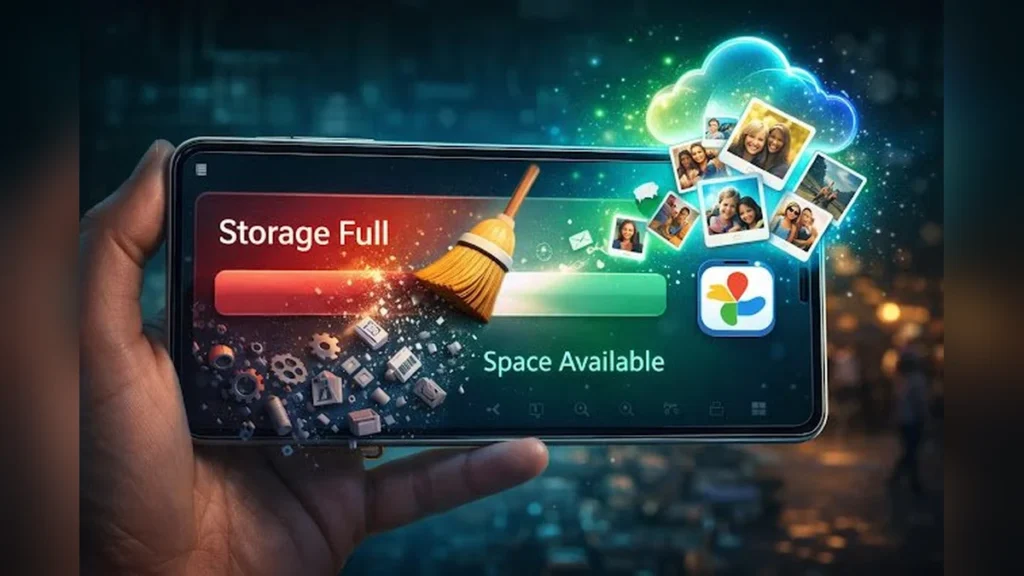
Does your mobile screen frequently display the irritating ‘Storage Full’ or ‘Storage Space Running Out’ notification? And each time, you wonder which old, precious photo or video you’ll have to delete? If so, you’re not alone! This is one of the most common and significant problems every smartphone user faces. But what if I told you that you don’t need to delete a single cherished memory? Yes, it’s absolutely true! Your phone storage is often filled not with your favorite pictures or videos, but with ‘junk’ hidden inside the phone, unnecessary app data, and files you don’t even need. In this comprehensive guide, we’ll share practical and 100% working methods that will help you free up 5 to 10 GB of storage on your phone in just a few minutes, all without deleting a single piece of useful data or memorable photo/video. Let’s find out how!
What’s the Real Reason for Storage Being Full?

Before we dive into solutions, it’s crucial to understand why your mobile storage gets filled up. Typically, these are the main reasons:
- App Cache: Every app you use stores temporary data (cache) to load faster. Over time, this cache can become very large.
- Junk Downloads: Files downloaded from the internet, PDFs, voice notes that are no longer needed.
- Duplicate Files: Multiple copies of the same photo or video, especially from WhatsApp and other messaging apps.
- Media Files: Photos and videos auto-downloaded from apps like WhatsApp and Instagram.
- Game Data: Large games come with significant data and updates.
- System Files & Updates: Operating system updates also consume considerable space.
Now that you understand the problem, let’s look at the solutions.
Powerful Ways to Free Up Mobile Storage Without Deleting Photos/Videos
1. Clear App Cache and Unnecessary Data
This is the easiest and most effective way to free up storage. App cache is temporary data that apps store for quick loading. It grows over time and can occupy hundreds of MBs to GBs.
How to do it:
- Go to your phone’s Settings.
- Select Apps or Apps & Notifications.
- Tap on each app and go to Storage & Cache (or just Storage).
- Tap on the Clear Cache option.
- Do this for apps you use frequently (like social media, browsers).
Important Note: Clearing cache does not delete any important app data. However, ‘Clear Data’ (or ‘Clear Storage’) resets the app completely, and you might need to log in again. Use ‘Clear Data’ only if you intend to remove all app data.
2. Smartly Utilize Cloud Storage
Cloud storage is a major convenience today. Services like Google Photos, iCloud, Dropbox, and OneDrive allow you to store your photos and videos online, reducing the burden on your phone’s local storage.
How to do it:
- Google Photos: If you’re an Android user, automatically back up all your photos and videos in the Google Photos app. Once backed up, select the ‘Free up space’ option in the app. This will remove photos and videos from your phone that have already been backed up to the cloud.
- iCloud Photos: For iPhone users, iCloud Photos is an excellent option. Go to Settings > Photos > Optimize iPhone Storage. This keeps lower-resolution versions on your phone and stores the originals in iCloud.
- Other cloud services work similarly.
Benefit: Your memories remain safe, accessible from any device, and your phone gains free space.
3. Find and Remove Duplicate and Large Files
Sometimes, without realizing it, multiple copies of the same file are created on your phone. Also, some videos or downloaded files can be very large and consume a lot of space.
How to do it:
- Use a File Manager: Google Files (an excellent app for Android) or your phone’s default file manager often has a ‘Clean’ or ‘Junk Files’ section. This helps identify duplicate files, large files, and unused apps.
- Manual Check: Regularly check folders like Downloads, WhatsApp Images, and WhatsApp Videos. You’ll find many files you no longer need. You can also look for duplicate image finder tools to identify similar copies of image files. Remember, these tools don’t scan or clean the entire phone; always verify originals and backups before deleting any file.
4. Uninstall Unwanted Apps and Their Data
We all have apps on our phones that we rarely use. These apps not only occupy storage but also accumulate data in the background.
How to do it:
- Go to your phone’s Settings > Apps.
- Review all apps one by one.
- Uninstall apps you haven’t used in a long time.
- If an app is necessary but used infrequently, clear its cache.
Pro Tip: The Google Files app has an ‘Unused apps’ section that lists apps you haven’t used for 30 days.
5. Regularly Clean Your Downloads Folder
We download a lot from the internet – PDFs, images, videos, songs. These files often reside in the ‘Downloads’ folder, and we forget about them.
How to do it:
- Open your phone’s File Manager.
- Open the Downloads folder.
- Delete all files you no longer need. You’ll be surprised how much space this folder can occupy.
6. Manage WhatsApp and Other Messaging App Data
WhatsApp is one of the biggest storage hogs because it auto-downloads all photos, videos, GIFs, and documents.
How to do it:
- Change WhatsApp Settings: Go to WhatsApp > Settings > Storage and Data > Media Auto-download. Under ‘When using mobile data’, ‘When connected on Wi-Fi’, and ‘When roaming’, set all options to ‘No media’. This prevents automatic media downloads, so you only download what you want.
- Manage WhatsApp Storage: Go to WhatsApp > Settings > Storage and Data > Manage Storage. Here, you can see which chats are consuming the most space and easily review and delete large files or forwarded files.
7. Use Smart Storage or Storage Saver Features
Modern smartphones come with built-in storage management tools that help free up space automatically.
- Android: In Settings > Storage, you might find ‘Smart Storage’ or ‘Storage Manager’. Enabling this allows the phone to automatically back up old photos/videos and remove them from the device (if cloud backup is enabled), and manage data for unused apps.
- iPhone: Settings > General > iPhone Storage offers options like ‘Optimize iPhone Storage’ and ‘Offload Unused Apps’, which are very helpful.
Create Smaller Copies for Sharing Photos
If you need a lighter copy of a photo for sharing, use a tool that reduces the photo’s KB size. Check if it’s clear enough in preview and keep the original safe. Downloading just a new compressed copy does not automatically remove or free up the phone’s old files.
Conclusion
The ‘Storage Full’ problem on your mobile is no longer a major issue. By adopting the methods mentioned above, you can easily free up GBs of space on your phone without deleting a single memorable photo or video. Make these practices a regular habit so your phone always runs smoothly and you never have to say goodbye to your memories out of fear of ‘storage full’. A phone with clean storage is faster and more efficient!
Vivek Bhai’s Advice
Look, brother, this ‘Storage Full’ problem is like accumulating junk in your house. We think everything is useful, but in reality, 80% of things are just taking up space. My simple approach: Fix one day every month, just like you pay bills when you get your salary, clean up your phone a bit. Run Google Files or your phone’s cleaner tool once, check WhatsApp storage, and uninstall apps you don’t use without thinking. These are small steps, but believe me, your phone will run like butter and you’ll never complain about ‘storage full’ again. Save your memories, not the junk!