ColorOS 17 Rollout for OnePlus: When Will Your Phone Get the Update?
Checking Settings repeatedly without finding a new update can be frustrating. Start by matching your exact model to the announced window and identifying whether you are looking at a Beta or an Official Version. A platform launch, a device appearing in a roadmap and an OTA reaching your particular phone are three separate events.
Updated: evening of 14 October 2026. This former Beta-application guide now covers the announced rollout and practical checks. Do not treat an old recruitment date as an application window that is still open today. Use your device’s official announcement and Settings rather than an unverified ROM or a file forwarded through WhatsApp.
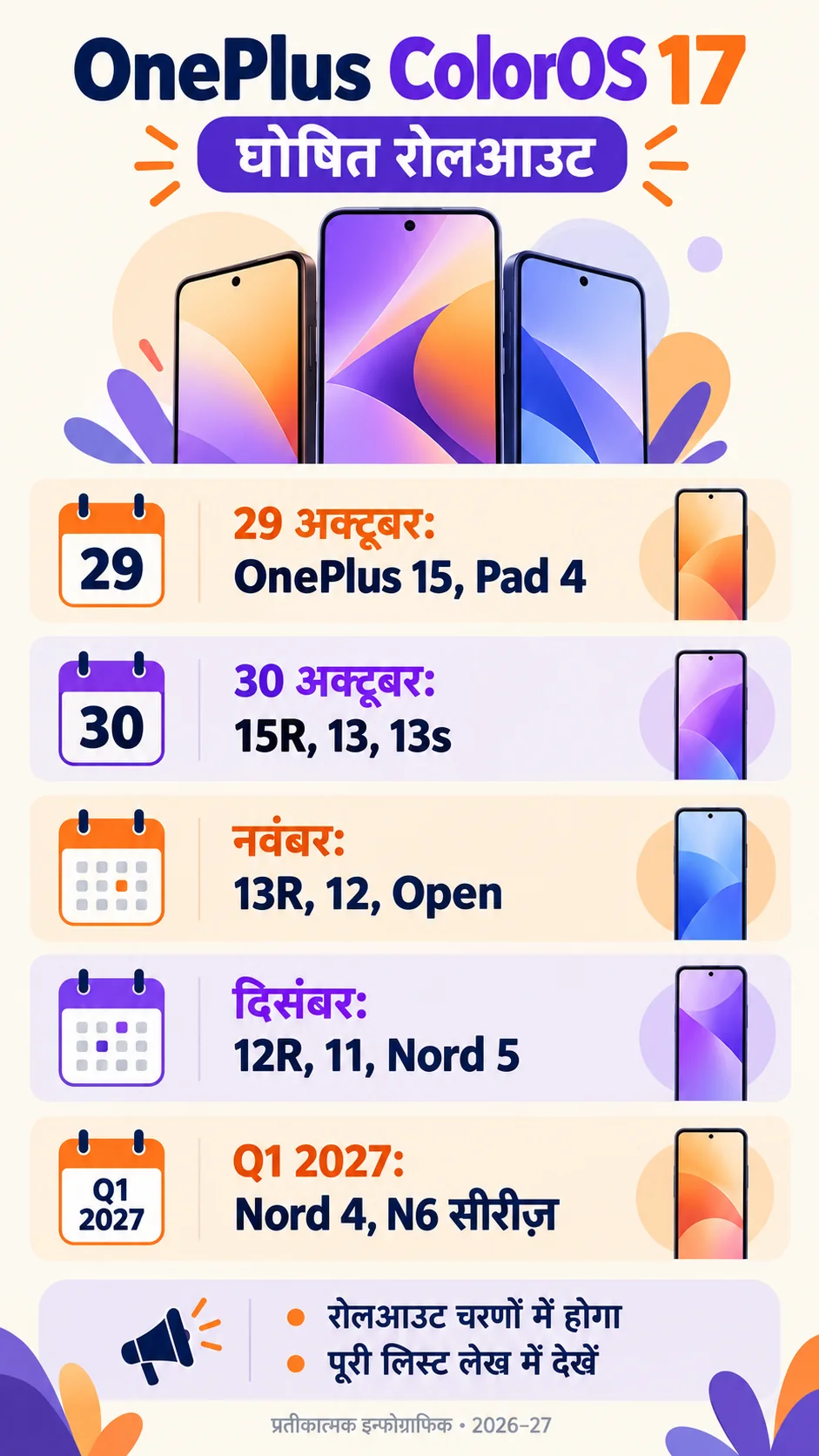
OnePlus ColorOS 17 device-wise rollout schedule
The table follows the rollout chart published through OnePlus Community. It includes phones and tablets. This is a global roadmap; also check the region/build for an Indian unit. Windows are approximate and can change by model, region or carrier; carrier-exclusive devices may follow separate schedules. They do not promise a download on every unit on the same day. Q1 2027 means January–March 2027.
| Announced window | OnePlus devices |
|---|---|
| 29 October 2026 | 15, Pad 4 |
| 30 October 2026 | 15R, 13, 13s |
| November 2026 | Open, 13R, 12, Nord 6, Nord CE6, Pad 3 |
| December 2026 | 12R, 12R Genshin Impact Edition, 11, Nord 5, Nord CE6 Lite, Nord CE5, Pad 2, Pad Go 2 |
| Q1 2027 | Nord 4, N6, N6x, N6 Lite, Pad Lite |
Match the full model name. The 13 and 13R, Nord 6 and N6, or Pad 4 and Pad Go 2 are different devices. A similar family name is not enough to select your update window. For an imported or converted device, also check its region and installed software build.
FACT BOX — four different things
- Roadmap: the announced window for a particular model.
- Beta: a test build with its own recruitment and eligibility conditions.
- Official/Stable: a general-release channel that can still roll out in stages.
- OTA: the update actually offered in your device’s Settings.
- A missing name here does not establish permanent exclusion from every future update.
What is the difference between Beta and Stable?
Beta software is for testing and may include problems or unfinished experiences. Consider your essential apps before installing it just to try a new interface. Identify the channel correctly: a Beta build and an Official Version are different releases. Beta participation should not automatically be treated as receiving a normal stable OTA.
The official OnePlus 13R recruitment notice gave an October 9–12 application window. On October 14 that window has ended; do not treat it as registration still open today. Read the current official recruitment notice for your model and the options presently shown on your device. Windows, prerequisite builds, quotas and selection conditions can change.
Do not apply an old screenshot, another model’s guide or a China-unit update to an Indian unit without checking compatibility. A friend receiving an update may be useful context, but it does not prove your device’s eligibility and build match. Read the actual package information and changelog when an update appears.
What is new in ColorOS 17?
OPPO’s official 13 October announcement describes Living Flow Design, the Luminous Rendering Engine and Laminar Flow Engine. AI Mind Pilot, AI Photo Agent and AI Mind Space are among the announced AI capabilities. Use the current official terminology rather than assuming that every name from an early preview remains accurate.
A platform-wide announcement does not mean every OnePlus device receives every function at once. Country, hardware, build, language and service availability can affect the experience. Check your device changelog and feature footnotes before relying on a capability for an essential task.
Manufacturer performance percentages are claims based on its testing, not guaranteed results for your usage. Review battery behaviour, important apps, camera and calling on your own unit after installation. This article does not promise improved battery life or a completely bug-free experience on every listed model.
How to check the correct update in Settings
First review the model, Android version and build under About device/About phone. Then open the Software update/System update section; labels and locations depend on the installed version. When an OTA is offered, read the package details and changelog. Google’s Android update guidance explains version and update-status checks too.
Update timing can vary by device, manufacturer and carrier. An update not appearing immediately does not establish that your phone is broken or the roadmap is false. Check the official announcement and current rollout information for your unit. Installation instructions cannot make a package available before it is offered.
This article supplies no downloadable ROM. Avoid using an unknown mirror, Telegram ZIP or another region’s package merely to obtain an update sooner. For a converted/imported phone or modified software, ask official support before assuming that a normal update procedure applies.
Advice: a short checklist before and after installation
Verify that important photos, documents and app-specific information are protected. Google’s backup guidance notes that not every app restores all settings and data. An enabled backup switch and a verified copy of what you need are different checks. Ensure you can recover your accounts and access your authentication methods.
Prepare reliable Wi-Fi, sufficient battery and free storage. Read the actual package’s size and instructions; there is no single fixed download size for every model in this guide. Follow the device prompts during installation and avoid starting the process in the middle of essential work.
Leaving a Beta or rolling back requires official instructions for the specific model/build. A downgrade is not equivalent to restarting the phone; data-loss and compatibility conditions may apply. Read first, then decide. If a problem occurs, privately note the model, build and exact error and seek OnePlus support.
Do not give an unfamiliar update-support caller OTPs, banking PINs or remote-access control. Test banking/UPI, calls, camera and essential apps yourself after installation. If only one app behaves differently, check its own updates and official support information before assuming the entire operating system is at fault.
Frequently asked questions
Do the OnePlus 13 and 13R have the same window? No. They are listed separately above. Referring to the entire “13 series” as if every device shares one date can be misleading. Match the complete model name.
Will every eligible phone update on 29 October? No. The chart contains different windows and rollout is staged. The roadmap is different from an OTA being available to your particular unit.
Are Beta applications still open today? The earlier recruitment notice does not establish that. Check the current official post and device option, and use a new application window only when it is announced.
Does the OxygenOS change automatically apply to every phone? Read your eligible device’s official notice. The OnePlus business-adjustment notice describes an option to update eligible devices to ColorOS; do not assume an identical process across all models and regions.
If my phone is missing, is it permanently excluded? This guide makes no such final declaration. Review its official support policy and future announcements. An unknown ROM is not a reliable way to change eligibility.
Official sources and related information
OnePlus rollout announcement · OnePlus 13R Beta recruitment reference · OPPO global feature announcement · OPPO India ColorOS page · Android update help · Android backup help.
यह OnePlus ColorOS 17 गाइड हिंदी में पढ़ें · Action checklist after a suspicious APK installation
This explains an announced roadmap and is not a live OTA tracker. Availability can vary by region, model and build. Images are representational; use official device information for installation instructions.