Downloaded movie has no sound? Start with a small comparison test
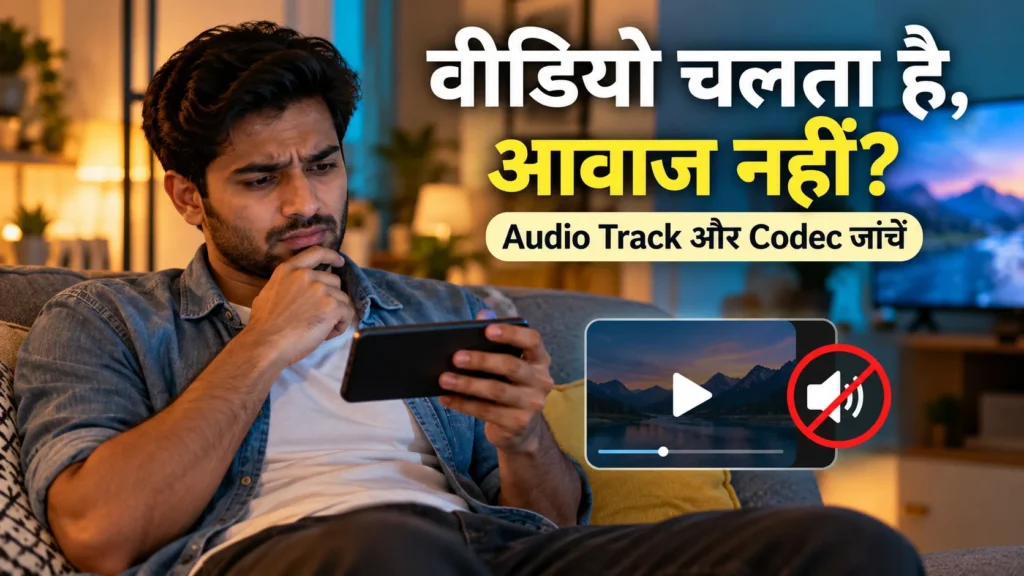
The picture plays clearly, but there is no sound. It is tempting to assume the file is broken or the phone cannot play the movie. Either conclusion may be premature. Media volume, a Bluetooth output, the selected audio track and codec compatibility are different possibilities. A short, ordered check helps separate them before you change the file.
Play a familiar local video or song on the same device. If that is also silent, investigate volume and output first. If other files sound normal and just one video fails, inspect that file’s audio tracks and the player’s behaviour. Keep the same file for comparison rather than testing several unrelated copies.
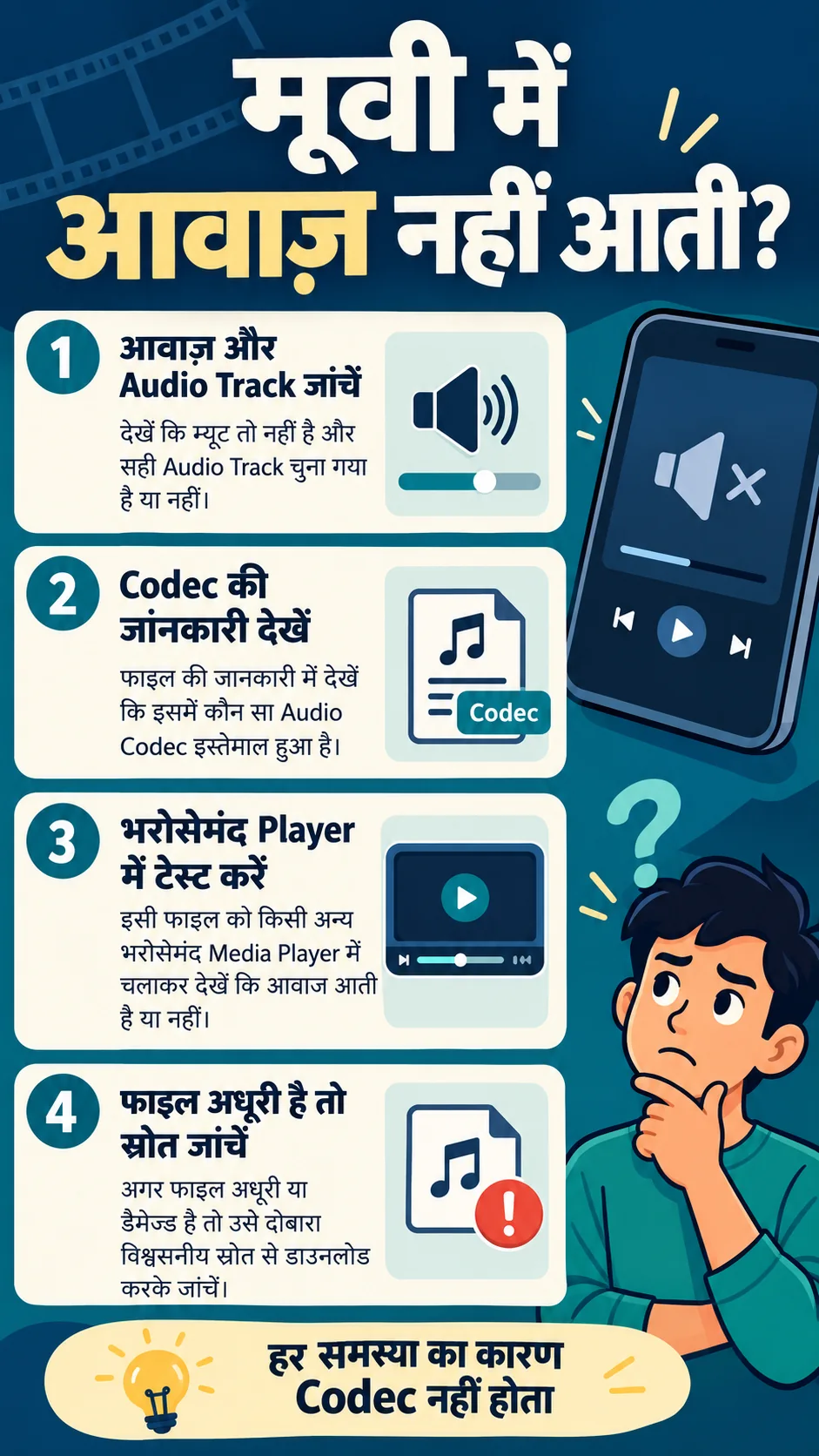
Check media volume, output device and selected track
Raising ringtone volume does not necessarily change media volume. While the video is playing, check the relevant volume control and the player’s mute setting. Connected headphones, a car system or a speaker may receive the sound instead of the phone. Select the intended output or disconnect that connection for a controlled test.
Next inspect the player’s Audio or Audio Track menu. An audio stream may be disabled, or a different track may be selected. Try another available track and note the result. Multiple audio tracks can have different encodings, so one working while another fails is useful information rather than proof the whole video is unusable.
Record four things: the file, player, selected track and output. That is more useful for support than reporting that everything is broken. Avoid resetting every setting immediately; change one relevant setting at a time so you can identify what affected the outcome and undo an unsuccessful change.
An MKV or MP4 container is different from its audio codec
MKV and MP4 are containers that can hold separate streams. The video and audio inside them may use different encodings. An extension does not tell you which audio codec a file contains, nor does it guarantee that a particular player supports every stream. The MDN container guide explains this distinction.
Names such as AAC, AC-3, E-AC-3 and DTS can appear in audio-format information. Support varies with the player, operating system, device and output setup. Neither “every MP4 works” nor “MKV never works” is a sound diagnosis. Consult the audio codec guide alongside information about your actual playback device.
| Reported item | Meaning | Next check |
|---|---|---|
| Matroska/MKV container | Container format | Inspect audio formats inside it |
| E-AC-3 audio | Audio encoding information | Player/output support |
| Two audio tracks | Two identified audio streams | Select and test another track |
| No audio track found | Parser did not identify audio | Consider parsing limits and the source file |
Inspect file information without uploading the video
Our Video & Audio Compatibility Checker reads available container, duration and track information from a local file. Supported metadata may include language tags, channel counts and bitrates. Select the file, choose Inspect file and read the Audio tracks section. The tool does not need the file to be uploaded to our server.
Inspect your video codecs and audio tracks
For example, a report may show Audio 1 as AAC and Audio 2 as E-AC-3. That establishes a format difference, not that the second stream is necessarily Hindi. Inspect its language tag separately and listen in a player. Missing language labels are not filled in by guessing from the filename.
Browser hints are limited media-type indications from the current browser. They do not describe every capability of your TV, certify the file’s complete decoding or confirm audible sound. Copy or download the JSON report if needed, and review filenames and private tags before sharing it. A report describes what was identified, not a guaranteed repair.
Compare the same file in another trusted player
Try the exact file in an updated, trusted player. VLC offers multi-track selection; consult its official video-player documentation for the Audio Track control. Install software only from an official store or project website. An error message is not a reason to install an unknown codec APK from a forwarded link.
If another player produces sound, you have a useful behavioural difference. It does not, alone, identify the first player’s faulty component. Compare the selected track, output and reported codec in each player. Include app versions in your notes when they differ, and preserve the original file for a repeatable test.
If a phone plays the audio but a TV, HDMI device or receiver does not, examine output settings as well. Digital passthrough can behave differently across setups. Read the VLC audio-settings guide and your device’s manual rather than treating one output toggle as a universal solution for every system.
When audio is not detected or disappears partway through
No detected audio track can mean an intentionally silent file, incomplete or damaged media structure, or a parsing limitation. The tool’s bounded inspection is not a complete file-integrity test. Compare the same file in another trusted player or desktop MediaInfo before deciding that no audio exists anywhere in the original.
If sound stops at a particular point, record the timestamp. Check whether the download or copy finished and, where the source provides them, compare the expected size and duration. Obtain a correct copy of your own or authorised source file. Avoid repeatedly overwriting the only original during attempted conversions.
A file that opens is not automatically complete. A short visible section, a readable header or some detected tracks cannot establish that the later parts are intact. Conversely, an inspector error does not prove intentional tampering. Keep the symptom description precise and separate what you observed from what you suspect.
FACT: Renaming `.mkv` to `.mp4` does not change the encoding inside. A volume booster cannot recreate audio that is absent from the file.
Advice: consider conversion only after the simpler checks
Start with track selection, output checks and a second-player comparison. When necessary, compare the reported codec, channel layout and resolution with your device’s official supported formats. Changing a container and re-encoding audio or video are different operations. A converter’s name does not guarantee that its output meets your particular device’s requirements.
If conversion is appropriate, preserve the original and test a separate short sample. Check duration, audio timing, language tracks and subtitles afterward. Re-encoding can reduce quality and remove streams depending on the settings. A browser converter that cannot decode the source cannot be assumed to repair it.
Useful support information includes container, video format, audio format, channels, device, player version and the problem timestamp. For language selection, read checking whether a file contains Hindi audio or only subtitles. If subtitle timing is the separate issue, use our Subtitle Timing Fixer.
Frequently asked questions
Does MKV no sound on Android always mean a codec error?
No. Volume, output device, selected track, file damage and player behaviour are also possibilities.
What should I do about EAC3 audio not supported?
Check the track and output, inspect the codec information, and compare an updated trusted player with the device’s supported formats. Avoid unknown codec APKs.
Does the checker play and listen to my video?
No. It reports metadata and generic browser hints. Test audible playback in a player.
Is a file definitely silent if no audio track is found?
Not necessarily. Incomplete media or parsing limitations can also produce that result.
Will changing the extension restore sound?
Renaming does not change encoding. A suitable supported conversion, when needed, is a separate process.
Technical sources: MDN containers, MDN audio codecs, MediaInfo, VLC track selection and VLC audio output. Reviewed: 14 October 2026.
General troubleshooting, not a repair or dubbing service. The checker does not guarantee playback on any device.