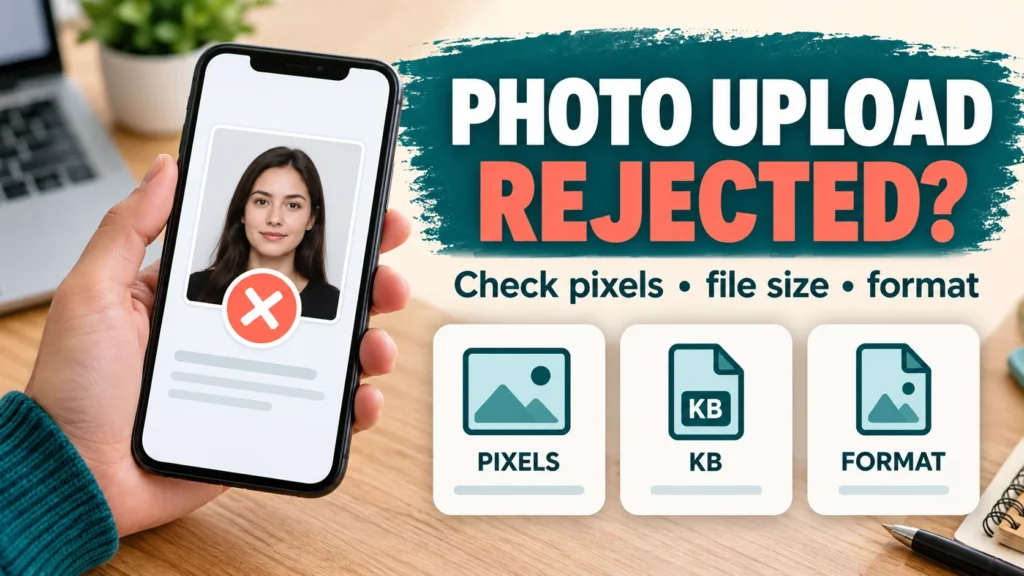
KB size is correct, but why is the photo still not uploading?
You reduced the photo size while filling out an application form, but you still get errors like “invalid image” or “upload failed.” Before compressing the image repeatedly, read the error message carefully. KB only indicates the file size. Pixel dimensions, actual image format, aspect ratio, and the form’s specific requirements are all different factors. Continuously tweaking the wrong setting will only make your image blurry and won’t necessarily fix the issue.
First, check the error message alongside the form’s requirements
Open the current instructions for the specific portal you are applying on. Note down the acceptable JPG/PNG formats, width × height dimensions, and the minimum and maximum file size limits separately. Also check if there are specific rules regarding the face, background, date, or signature. Do not assume that settings from another form will apply here.
“File too large” and “invalid dimensions” are completely different issues. Similarly, “Session expired” does not necessarily mean there is a flaw with your photo. Note down the exact text of the error message. If you send screenshots to others for help, make sure to hide your name, application number, and personal information.
Three separate checks: Pixels, KB, and Format
Suppose a hypothetical form requires a 300×300 pixel JPG image between 30–50 KB. A 28 KB JPG image with 300×300 dimensions has the correct pixel dimensions, but falls below the 30 KB minimum limit. Conversely, a 40 KB photo measuring 600×400 pixels meets the file size requirement, but fails the dimension check. This is just an example and not a real specification for any actual exam.
Check photo pixels and file size. Do not assume the format is correct just by looking at the thumbnail in your gallery or the file name. Renaming a PNG file extension to .jpg does not alter its internal image encoding. For real conversion, use an image format converter and verify the resulting file again.
How to prepare and select the right file on mobile
- Keep a copy of the original photo. Instead of starting with a photo repeatedly forwarded on WhatsApp or a screenshot, use a clear original image.
- Select your JPG, PNG, or WebP photo in the Photo Resize: Pixels and KB tool. Enter the required width and height in the correct order.
- Options that fit the entire photo may add blank padding. Centre crop cuts off edges. Do not accept a cropped output if it cuts off your face, ears, head, or essential details.
- Select the portal’s acceptable format and maximum KB. Review the resulting dimensions, actual file size, and preview.
- Download the file. When the file picker opens on the portal, select the new file from Files/Downloads. Choosing the old original, a thumbnail, or a screenshot of the result will repeat the same mistake.
- If an upload preview appears, open it. Do not proceed just because you see a green tick; ensure the photo is oriented correctly and clear.
Using a synthetic sample on October 20, 2026, a 300×300 JPG download was tested with this tool: 28,947 bytes, or approximately 28.27 KB. This is a test result; the file size and quality will vary for every photo. This example does not guarantee acceptance by any real government portal.
How to fix specific error messages
- File too large: First check the actual bytes. If pixel dimensions are already correct, use an image compressor to create an output within the allowable limit and verify.
- File too small: Check if the form enforces a minimum file size limit. Create a new file using a clearer original image with less compression. Trying to bypass validation by adding dummy bytes does not guarantee a usable photo.
- Invalid dimensions: Check width×height. 300×400 is not the same as 400×300. Reducing KB alone will not fix dimension issues.
- Invalid format: Convert the actual format. If the portal requires JPG, a WebP file will not be accepted even if it is smaller in size.
- Blurred photo/background issue: Avoid excessive compression. If necessary, take a fresh, clear photo against the correct background. Meeting the size requirement does not automatically fulfill visual quality criteria.
- Upload failed/session expired: First, save your filled application draft. Check portal notifications and browser permissions; refresh your session and try again. Changing the photo repeatedly will not fix a server issue.
PNG, blank padding, and small size limitations
In PNG output, lossy quality settings like those in JPG/WebP do not apply. In this tool, if a PNG exceeds the target limit, an error will occur. Choose JPG/WebP only if format conversion is permitted. Reducing mandatory form dimensions just to meet KB limits is not the right solution.
Adding white padding can keep the entire photo intact, but not every portal accepts it. Refer to the form guidelines when converting a portrait photo into a square format. Enlarging a small, blurry image will not restore lost detail.
Frequently Asked Questions
Will any 50 KB photo work on every form?
No. Format, pixel dimensions, minimum file size, and visual rules must also meet requirements.
Can you convert PNG to JPG simply by renaming it?
Renaming a file is not conversion. Generate a proper JPG output and verify it again using a file checker.
What if the photo is correct but uploading is still blocked?
Check the error message and portal notices. It could be a session, browser permission, or server issue. Report the error message and timestamp to the helpdesk; do not share your password or OTP.
Will changing DPI fix pixel dimensions?
Do not confuse the two. If the portal asks for pixels, check those dimensions; if there is a DPI requirement, check that separately.
Our advice and technical sources
First identify the error, then change one setting at a time and check the downloaded output. Always keep your original photo safe. Our photo tools process files inside your browser; nevertheless, avoid sending personal documents to strangers or unverified chats.
Technical references: MDN: Canvas image export and quality; MDN: Image formats. The official instructions on the respective portal remain the final source for actual application requirements.
This is a general troubleshooting guide. It does not guarantee current specifications or upload acceptance for any specific exam or portal.