Brother, there is chatter everywhere about one topic — how to use ChatGPT agents. Posters show seven steps, while the app shows a different menu. The truth is that Agents/GPTs work like specialized helpers; the UI and plans keep changing. Here is an India-friendly guide — not a copy of the official documentation, but clear direction.
What are ChatGPT Agents? In Simple Words
When people ask how to use ChatGPT agents, they often picture a magical robot that will run an entire office by itself. In reality, think of them as specialized helpers — assistants with different capabilities for small, specific tasks. Research helpers search for information and summarize it; Write helpers create drafts and polish tone; Plan helpers handle task scheduling; Analyze helpers spot patterns in data and notes; Create helpers give direction for ideas, images, and presentations; and Automate helpers outline repetitive workflows. These six categories are functional concepts — like glowing holo-boxes on a poster. Every category may not always appear as a dedicated button for free users.
In the ChatGPT family, users often mix up terms like Agents, GPTs, custom instructions, and projects. Here is Vista Hub’s straightforward view: whatever the name, the goal remains the same — give clear tasks, set limits, and refine the output. Calling something an “Agent” does not work magic. If you specify the objective, audience, length, and constraints in your prompt, the result will be much better. Also, this article is not a replica of OpenAI’s official documentation. Menus, names, and feature availability can change depending on region, subscription plan, or app version — always check your current ChatGPT app or the chat.openai.com interface directly.
For users in India, the most crucial distinction is the plan. Agents, GPTs, and several advanced features are frequently linked to Plus, Pro, or business plans; we will not make false promises that they are always available for free forever. You can still learn a lot on the free tier — such as drafting, brainstorming, and structuring — but if an Agents sidebar shown in promotional graphics is missing from your account, do not panic. Feature rollouts vary. The step-by-step flow below serves as guidance, not a guaranteed screenshot-by-screenshot match.
How to Use ChatGPT Agents — Step-by-Step
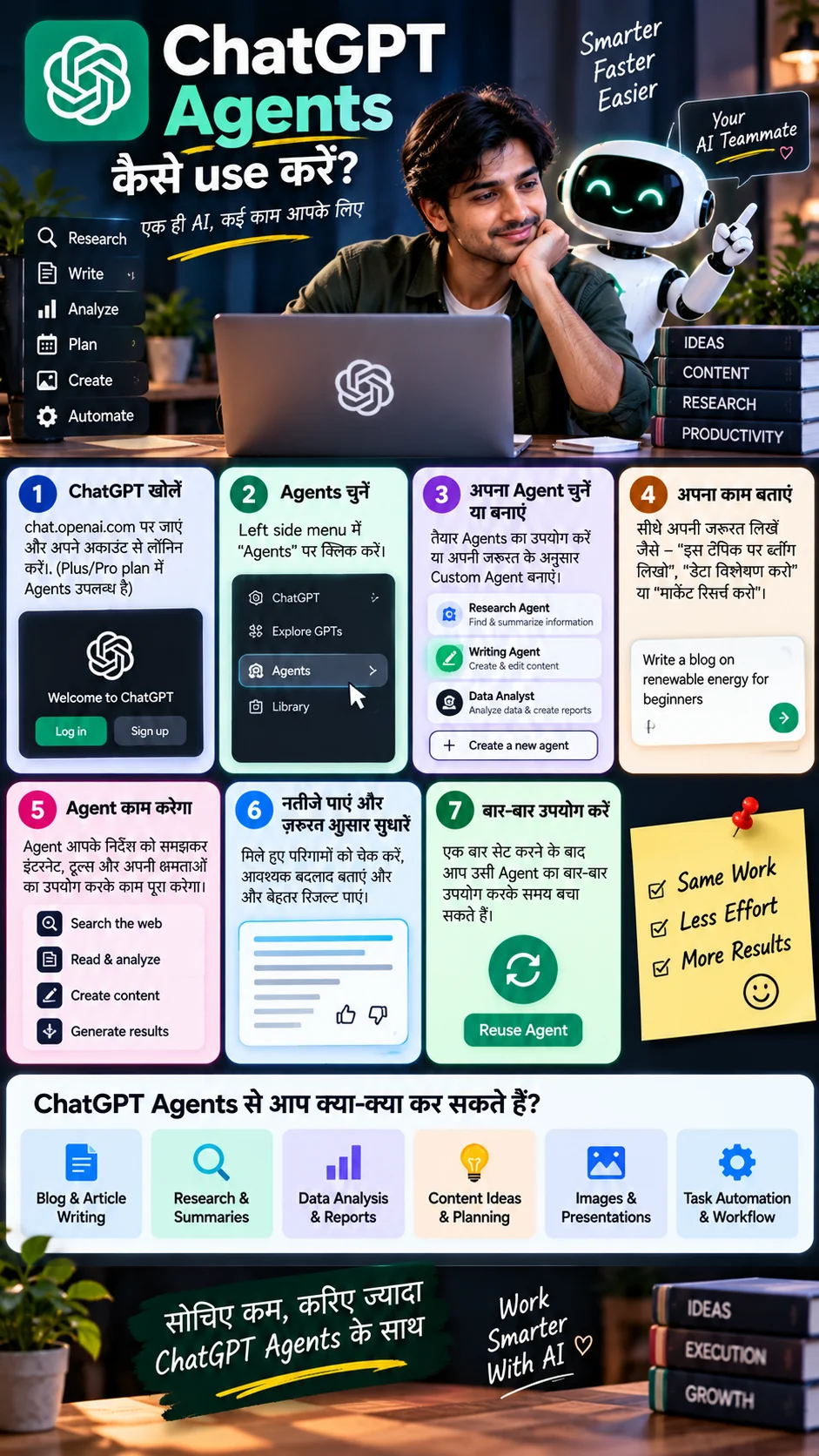
Step 1 — Open ChatGPT. Open chat.openai.com in your browser (or use the official OpenAI app) and log in. Mobile and desktop layouts may differ. If you are on a Plus/Pro plan, you may see more advanced entry points. Standard chat works on free tiers too, so if the Agents area is not visible, try alternative methods outlined below.
Step 2 — Locate the Agents / GPTs area (if visible). Labels like Explore, GPTs, or Agents may appear in the left sidebar. These names can change over time. If you do not see the word “Agents”, look for options like GPTs, Explore, or Create a Custom GPT. Do not expect an exact match to promotional graphics — the UI changes regularly.
Step 3 — Choose a ready helper or build your own. Select a ready template like Research or Writing if available; otherwise, select “Create / New” and define your mission — role, output format, language preference (Hinglish/Hindi/English), and boundaries. The more clearly you specify rules (e.g., “You are a blog editor writing an 800-word post for beginner Indian readers”), the better the results.
Step 4 — Clearly define your task. A single line like “Write a blog” is a weak prompt. A better prompt includes topic, target audience, target length, tone, what to include or avoid, and examples. For instance: “Blog outline + intro draft on renewable energy for beginners in India, simple language, 5 H2 headers.” Capabilities like web browsing, tool integrations, and file uploads depend on your current plan and UI — work with the tools available to you.
Steps 5–7 — Let it work, review, and reuse. The Agent/GPT will respond with search results, summaries, or drafts based on your plan features. Your actual job is to fact-check, check the tone, and correct names or figures. Refine the output using follow-up prompts or feedback actions. Save, pin, or reopen setups that work well for future use — efficiency comes from smart reuse, not magic. You can store long, repetitive instructions inside custom instructions or a dedicated GPT if that option is accessible.
Research, Write, Plan — What the Three Helpers Mean
Research mode focuses on gathering information, summarizing data, and clarifying different angles of a topic. It works well for a student’s initial project pass, summarizing three competitor pages, or looking up release details. It is best practice to verify key facts on official websites afterward. Do not treat AI as Wikipedia — cross-check critical information.
Write mode assists with drafting, editing, and adjusting tone. Blog introductions, YouTube hooks, polite client email responses, and SOP outlines are common use cases for Indian freelancers. The main drawback is that unverified facts may be included. Always write first, then refine using your knowledge. You can request Hinglish output if your target audience prefers that format.
Plan mode focuses on structuring schedules, tasks, and reminders. It helps generate weekly content calendars, exam revision timelines, and pre-launch checklists. Transferring these plans into a real calendar app is up to you; AI will not send guaranteed alerts unless connected tools are enabled. Planning provides a conceptual roadmap, not a physical alarm clock.
Analyze, Create, Automate — The Other Three Angles
Analyze mode handles trends and insights from data and notes. It extracts action items from meeting notes, summarizes small CSV files, or identifies themes in survey responses whenever text or file support is available. Avoid uploading sensitive client spreadsheets or raw personal financial data into the chat; mask columns or names and ask for structural guidance instead.
Create mode helps with brainstorming ideas, image concepts, and presentation directions. It can outline thumbnail concepts, slide structures, and campaign taglines if image or slide generation features are enabled on your plan. Even without image tools, you can extract text scripts and outlines. Remember to respect copyright standards and brand guidelines.
Automate mode covers lightweight automation concepts — listing repetitive steps, mapping workflows for external tools like Zapier, Make, or n8n, or outlining weekly checklists. Use native automation features if available inside ChatGPT; for advanced tasks, learn external automation tools separately. Never enter passwords, API keys, or OTPs into prompts.
FACT: Using ChatGPT Agents — At a Glance
- Concept: Agents ≈ specialized helpers — Research / Write / Plan / Analyze / Create / Automate
- Step Direction: Open ChatGPT → Go to Agents/GPTs area (if visible) → Select/Create → Define task clearly → Review & refine → Reuse
- UI Warning: Menus and feature names change over time — verify on your app; graphics are not official manuals
- Plans: Agents/GPTs are often linked to Plus/Pro tiers — do not assume they are permanently free
- Use Cases: Blogs, research summaries, data notes, idea generation, image/slide concepts (where supported), and workflow planning
- Privacy: Keep passwords, OTPs, and confidential client data out of prompts
- Disclaimer: This is an educational guide by Vista Hub and is not copied from official OpenAI documentation
Practical Use Cases for Users in India
Blogs and Articles: Outline → Intro → H2 Drafts → FAQs. Add your local examples and updated pricing or features manually. Research Summaries: List three key questions, highlight line sources, and cross-check against official pages. Data Notes: Convert bullet points from meetings or classes into action items and a summary paragraph — useful for both study and office work.
Ideas and Planning: Generate 10 Reel hooks, weekly content calendars, or product launch checklists. Images and Presentations: Use available tools for draft concepts, then refine the final design manually or with a designer. Light Automation: Map out workflows like “Form → Sheet → Email Alert” conceptually, then build them inside tools like Zapier or n8n. Do not rely on ChatGPT as a complete IT infrastructure.
A simple practical rule: select two real deliverables each week — such as an article draft and a research summary. Apply one specific helper style to each deliverable. Subscribing to multiple agent tools without setting clear SOPs can be counterproductive. When you see claims that AI agents built a business overnight, check the plan, menu, and actual proof. Focus on clear task lists over hype.
Privacy, Plans, and Realistic Limits
The most important rule: do not upload passwords, OTPs, banking/UPI details, unpublished client pricing sheets, employee salary details, or API keys into ChatGPT. Treat public AI tools carefully. If using a workplace account, follow your organizational IT policy; do not enter confidential office data into personal free accounts. Mask sensitive information and ask only for structural or stylistic help.
Plan details vary, as indicated in infographic references to Plus/Pro subscriptions. Understand the limits of your accessible features — message limits, file uploads, image generation, advanced voice features, and agent availability vary by region and tier. Verify current subscription rates directly on OpenAI’s website. Do not rely on AI alone for critical medical, legal, or financial decisions; cross-check outputs with official sources.
Advice
Learning how to use ChatGPT agents depends on your specific task list rather than a promotional diagram. First, define what you need today: a blog draft, research summary, weekly plan, notes analysis, creative ideas, or a map for repetitive tasks. Next, open ChatGPT. If options like Agents, GPTs, or Explore appear in the sidebar, select or build a helper from there; if not, assign a role directly within standard chat. Provide clear constraints — audience, length, language preference, and guidelines on what to avoid. When you get a response, verify facts, names, and local examples. Save effective setups for future reuse. This workflow remains useful even if feature names change in future updates.
Regarding plans and expenses: do not assume advanced agents will remain free indefinitely. Consider Plus, Pro, or business tiers only when your workflow demands them. Avoid creating dozens of custom GPTs at once — starting with one for writing and one for research is sufficient. Content creators and freelancers in India can request Hinglish output when appropriate, but maintain your authentic voice in final client deliverables. Use AI for initial visual or presentation concepts where available, and keep copyright guidelines in mind. You can draft automation concepts with AI, while storing live credentials securely inside dedicated external tools.
Finally, build a habit of verification. AI works quickly, but it is not infallible. Confirm research points on official sites, government portals, or primary sources. Copying and pasting unverified content directly into academic or professional work carries risks. Treat digital privacy with care. Revisit these core guidelines whenever UI updates occur: focus on specialized helpers, clear tasks, thorough reviews, and smart reuse. Stick to practical application over hype. Keep things clear, focus on real tasks, and minimize repetitive manual work.
Frequently Asked Questions (FAQ)
What are ChatGPT Agents?
In simple terms, they are specialized helpers for tasks like Research, Writing, Planning, Analysis, Creation, and Automation. Feature names and UI layouts inside OpenAI may change; you can apply similar workflows using standard GPTs or regular chat prompts.
What is the shortest workflow to use ChatGPT Agents?
Open ChatGPT → Navigate to Agents/GPTs (if available) → Select or create a helper → Give a clear task prompt → Review and refine the output → Save and reuse. If the Agents menu is absent, assign a specific role directly in standard chat.
Are ChatGPT Agents free to use?
They are not guaranteed to be free permanently. Agents, custom GPTs, and advanced features are often connected to Plus or Pro subscriptions. Check your account settings and OpenAI’s official pricing page for details.
What are the best initial use cases in India?
Start with blog or email drafts (Write), focused research summaries (Research), or small weekly task lists (Plan). Image creation and automation concepts can be explored later where supported and secure.
Can I enter passwords or client data into Agents?
No. Do not enter passwords, OTPs, banking information, or confidential client data. Mask sensitive details and request structural or stylistic help only. Follow your workplace IT policies where applicable.
Also Read
Disclaimer: This article is a general educational guide and is not a copy of official OpenAI documentation. ChatGPT, Agents, GPTs, and related feature names, menus, limits, pricing, and availability are subject to change without notice; paid plans like Plus/Pro may be required. Features visible on your screen take precedence; infographics serve as directional reference only. Do not enter passwords, OTPs, or confidential client details into AI chats. Do not rely on AI for medical, legal, or financial decisions. Verify updated details on the official ChatGPT/OpenAI website prior to purchasing subscriptions. Vista Hub does not claim sponsored endorsements for any tool in this guide.