 Vista
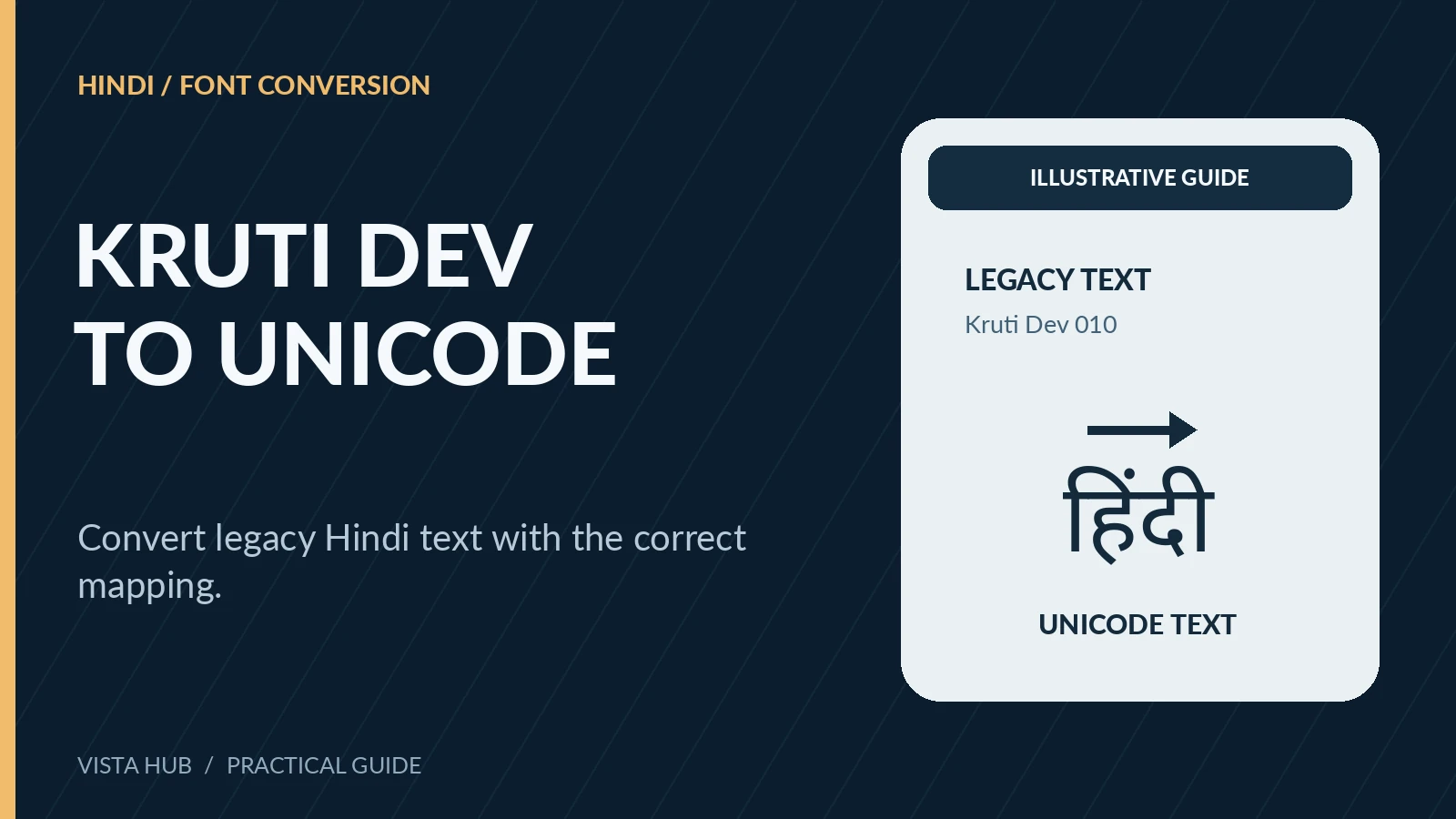
The Hindi in a PDF looks perfectly clear. But when you copy it and paste it into Word or WhatsApp, “भारत सरकार” turns into “Hkkjr ljdkj”. Sometimes the vowel signs (matras) jump to the wrong place or the letters break apart. This is not a fault in your computer. There is a precise technical reason behind it.
In this guide we explain why it happens, how to identify which problem your PDF has, and the right fix for each case.
First, which problem do you have? (chart)

| What you see after copying | Real cause | Fix |
|---|---|---|
| English-looking letters like “Hkkjr ljdkj” | The PDF uses an old (legacy) Hindi font such as Kruti Dev or DevLys | Kruti Dev to Unicode converter |
| Matras in wrong places, broken letters | The font has incomplete Unicode mapping | Text cleaner, or copy from a different PDF reader |
| Nothing can be copied | The PDF is actually a scanned image | OCR with the Hindi language |
| Text copies but empty boxes appear in Word | The font you pasted into lacks Devanagari | Change the font (for example Mangal) |
Why does the garbage text appear?
Behind every letter on a computer is a code. When Unicode arrived, each Hindi letter got its own standard code. But before Unicode, people printing Hindi used fonts such as Kruti Dev, DevLys, Shivaji and Chanakya. These fonts make English keyboard letters look like Hindi shapes.
So on screen you see “भारत”, but inside the file the real stored letters are the Latin “Hkkjr”. As long as that font is applied, reading works. When you copy, only the inner letters come out, and that is the garbage you see.
Many government PDFs are still made in these old fonts. Some government sites even provide a Kruti Dev font download so their PDFs display correctly.
How to tell if the font is a legacy font
- Copied text shows English-like strings such as “ljdkj” or “dk;kZy;”.
- In your PDF reader, Document Properties → Fonts shows names like Kruti, DevLys, Shivaji, Chanakya or Walkman.
- When you paste the text into Word and set the font to Kruti Dev 010, it becomes readable Hindi.
Fix 1: Use a Kruti Dev to Unicode converter
If copying gives English-looking garbage, this is the most direct and reliable fix.
- Open the PDF and copy the garbled text.
- Open our Krutidev to Unicode converter.
- Paste the text and press convert.
- Copy the clean Hindi text into Word, WhatsApp or your website.
Remember the converter works only if the old font is Kruti Dev or something close to it. Other fonts such as DevLys map some letters differently, so if the result does not look fully right, check it once.
Fix 2: Clean scattered matras with a text cleaner
Sometimes the PDF is in a Unicode font like Mangal and copying still breaks matras or conjuncts. This happens when the Unicode mapping was not attached properly when the PDF was created. In that case our PDF text cleaner can clear extra spaces, broken lines and scattered letters.
Also try opening the PDF in another reader and copying again. Sometimes one reader garbles the text while another extracts it correctly.
Fix 3: OCR for scanned PDFs
If the PDF is a photo of a page or a book, it contains no text at all, only an image, so there is nothing to copy. You need OCR (Optical Character Recognition), which reads the image and turns it into text.
- Always select “Hindi” as the language when running OCR, otherwise Hindi will not be read properly.
- Clean, straight scans give the best output. Blurry or tilted scans increase errors.
- After OCR, read the text through and correct mistakes.
Fix 4: Handle the whole PDF in one workflow
To fix a full Hindi PDF, our Hindi PDF workflow tool guides you step by step to the method that suits your file.
If empty boxes (□□□) appear in Word
The copied text may be fine, but the font you pasted into has no Hindi letters. Change the selected text to a Unicode font such as Mangal, Nirmala UI or Noto Sans Devanagari and the boxes will disappear.
How to avoid the problem when you make PDFs
- Type Hindi in a Unicode font such as Mangal.
- Keep the “embed fonts” option on when exporting to PDF.
- Copy one line out of your finished PDF and check that the text comes out right.
- If you must use an old font, keep a Unicode version of the file too.
Common mistakes people make
- Retyping the garbage by hand when a converter fixes it in a minute.
- Waiting for copy to work on a scanned PDF, which needs OCR.
- Leaving the OCR language on English.
- Using the converted text without reading it.
Frequently asked questions (FAQ)
Why do English letters appear when I copy Hindi from a PDF?
The PDF uses a legacy Hindi font like Kruti Dev that stores English keyboard letters internally and only looks like Hindi.
How do I convert Kruti Dev text to Unicode?
Copy the garbled text, paste it into a Krutidev to Unicode converter and press convert.
How do I get text out of a scanned Hindi PDF?
Use OCR with Hindi selected as the language. Clean scans give better results.
Why do matras move to the wrong place?
When a PDF font lacks proper Unicode mapping, copying can scramble the order of letters.
What is the difference between Unicode and Kruti Dev?
Unicode gives every Hindi letter its own standard code that works on every device. Kruti Dev shows English letters in Hindi shapes and reads correctly only with that font.
Can every Hindi PDF be converted?
No. PDFs with real text can be converted. Image-only PDFs need OCR.
Also read: DevLys 010 to Unicode Converter: How to Convert Legacy Hindi Font Text Online | How to Convert a Scanned Hindi PDF to Editable Text with OCR (Free and Easy Methods)
Sources
- Digital Orientalist: Why Extracting Hindi Text from PDFs Is So Much Harder Than English
- DocSet: Fix Hindi Font PDF Copy-Paste Issue
- Fedora i18n bug list: PDFs without Unicode indexing
- Bihar government (BPSSC and CSBC) font help pages
- Adobe Community: Hindi PDF copy-paste and font discussions





















Share Your Opinion
Comments are closed on this post.