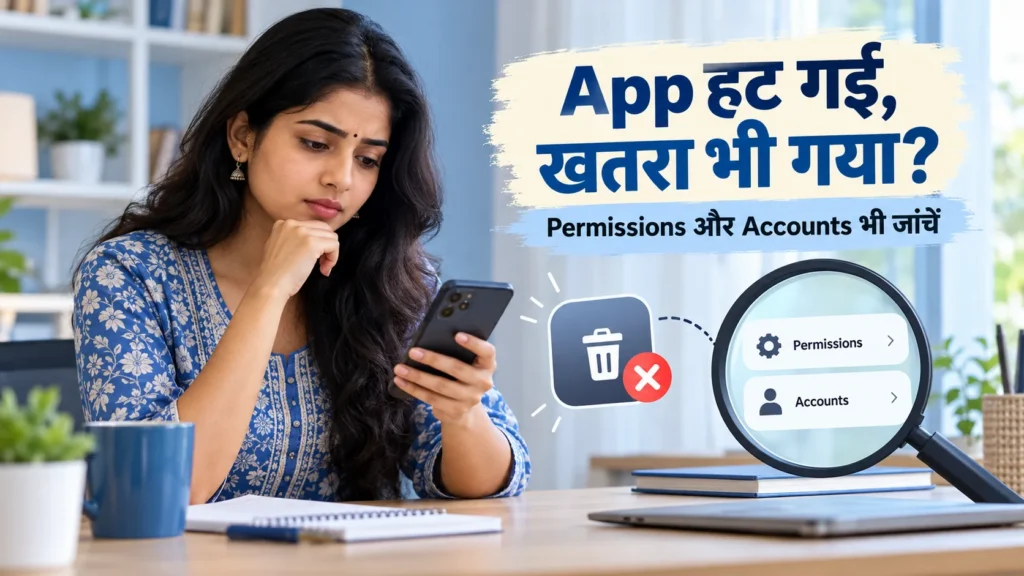
Uninstalled the suspicious app: what remains to check?
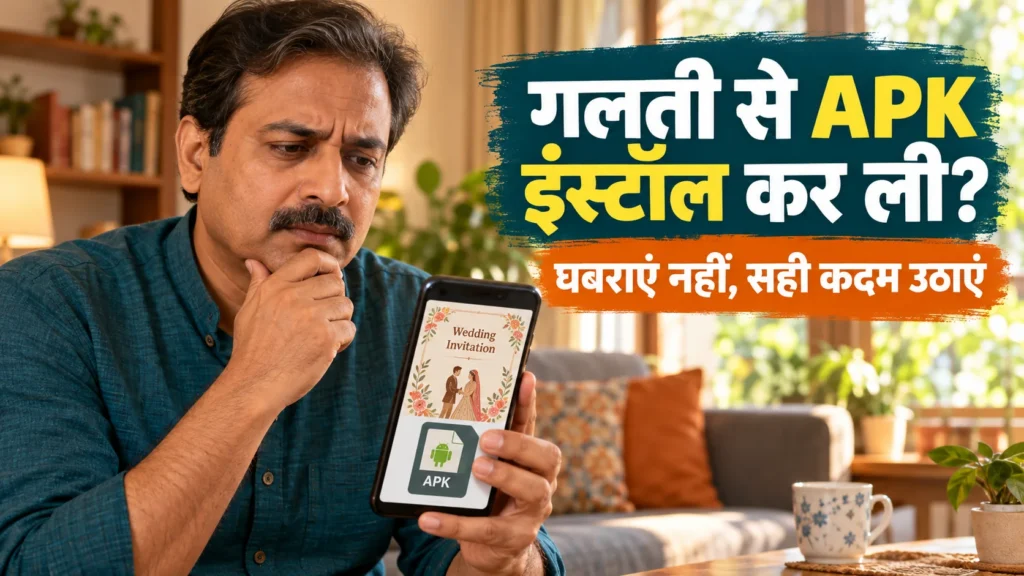
You removed the strange APK-installed app and its icon disappeared. Feeling relieved is understandable. Does that mean everything it may have done has also disappeared? Uninstalling can be an important action, but it is not a certificate that the entire device and all connected accounts are safe.
Think of two separate tasks: reviewing the device for remaining suspicious activity and responding to accounts or data that may already have been exposed. Removal cannot recall information copied earlier or automatically end an attacker’s separate account session. On the other hand, ordinary battery drain or a slow phone is not by itself proof of hidden malware.
Check financial harm before completing a long cleanup
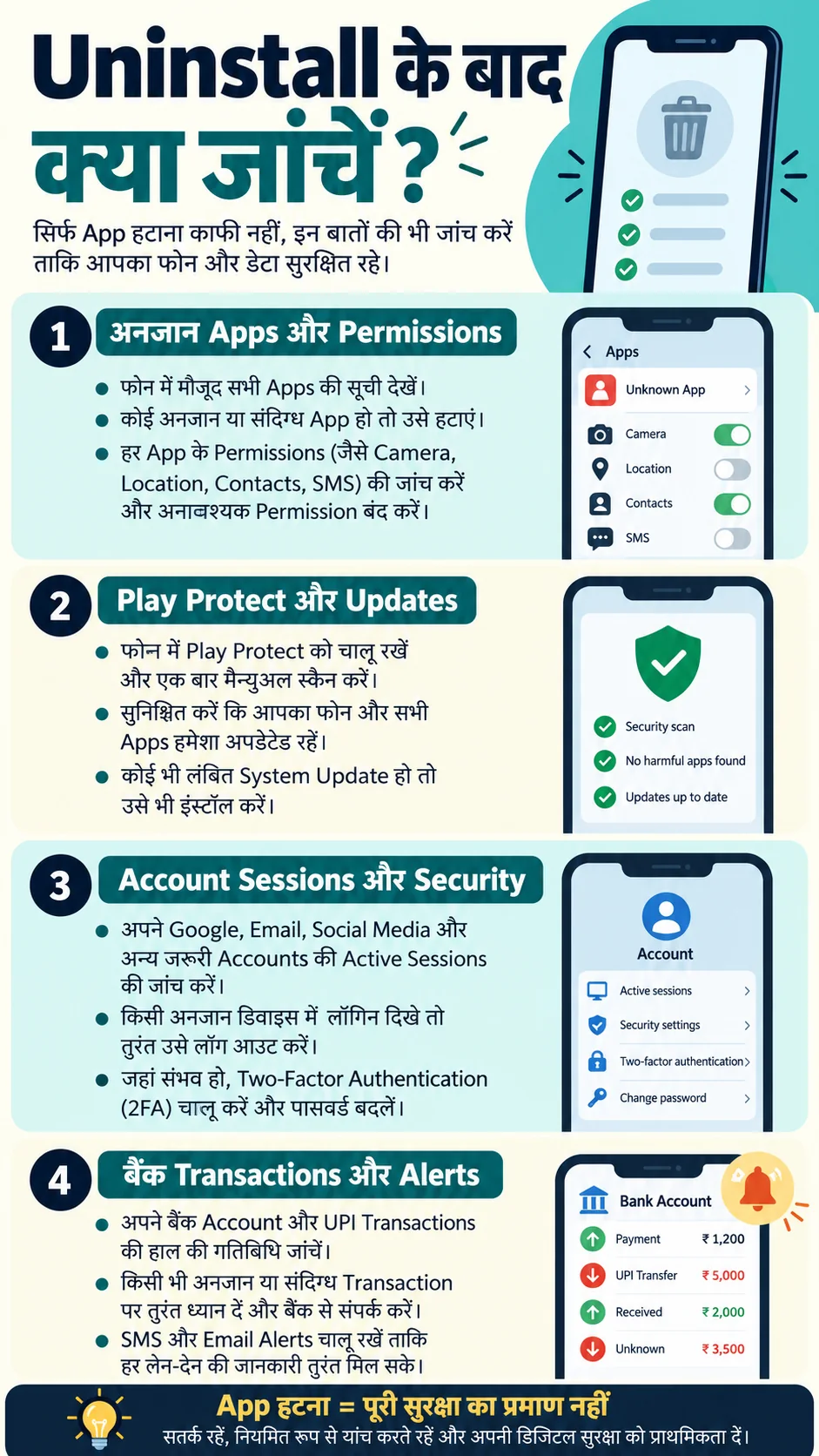
If you see an unauthorised bank, UPI or card transaction, do not wait until every cleanup step is finished. From a trusted separate device, contact your bank’s official fraud channel, call 1930 and report through NCRP. Removing an app does not remove the need to report a financial incident. Keep transaction information and complaint references privately.
Confirm actual account activity through official bank channels rather than treating an isolated SMS as conclusive. When you identify an unauthorised debit, act promptly and ask the bank about appropriate account/card/UPI protection. This article does not establish a particular refund, chargeback or compensation entitlement.
Review the full installed-app list, not just icons
Open Settings → Apps/See all apps to confirm that the app was actually removed. Identify other unfamiliar recent additions too. Some malicious campaigns can introduce an additional payload, but that possibility does not establish that it happened on your phone. Review the facts rather than deleting every unfamiliar system component.
If the app returns, uninstall is blocked or App info remains despite a missing launcher icon, seek further assistance. Official manufacturer support is a useful next contact. For managed work devices or legitimate accessibility tools, understand the role of the app before changing it. Names, installation timing and behaviour help the review; none alone is a definitive forensic verdict.
Ordinary permissions and special access are different
Camera, Contacts, Location and SMS permissions may appear in the app’s permission screen. Accessibility, Notification access, Device admin and Install unknown apps can appear elsewhere. Looking at one ordinary permission screen does not necessarily cover every sensitive kind of access. Menu labels and locations differ by Android version and manufacturer.
Remember that permission to send notifications is different from access that reads other notifications. Do not bypass restricted-settings protections to grant an unknown app additional access. Revoke suspicious access you have identified, without blindly breaking a legitimate screen reader, assistive tool or managed work setup. Seek trustworthy help if you cannot tell which component is responsible.
Review accounts, sessions and recovery contacts
Device cleanup and account recovery are separate processes. If you entered a password or OTP, saw an unfamiliar sign-in or noticed messages you did not send, use the affected service’s official recovery from a trusted clean device. Change exposed credentials and review devices/sessions, recovery email/phone and suitable two-step protection.
Prioritise accounts with signs of compromise or exposed credentials. Do not enter recovery through links supplied in the scam message. Securing access to your email can also support recovery of other services. If WhatsApp access is affected, our WhatsApp PIN and account-recovery guide covers that separate problem.
What does a clean Play Protect scan actually tell you?
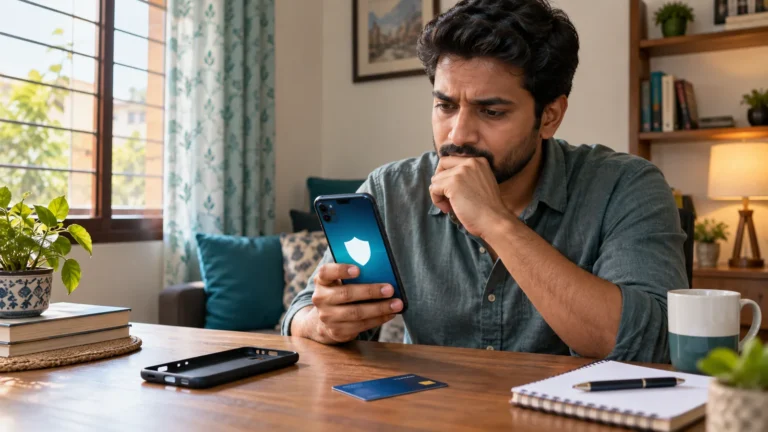
Run Play Protect through the Play Store profile menu and check Android/security updates. A “no harmful apps found” result is useful, but should not become a guarantee that every risk has ended. It reflects the available detection at that time. Account activity that happened earlier still needs its own review.
Google’s Improve harmful app detection option may send unknown apps to Google; understand that option before using it. Our APK response wizard is different: it does not scan apps or upload a file, and uses only questionnaire answers to arrange next steps. Continue checking official bank records and unexplained account activity even after a reassuring scan result.
When to consider further help or a factory reset
Persistent suspicious behaviour, an app returning or difficulty removing it warrants official manufacturer support or a qualified technician. Manufacturer-specific Safe mode guidance may help isolate a downloaded-app problem. It is not a malware-free certificate. Avoid diagnosing the whole phone from a single battery or pop-up symptom.
A factory reset can erase data and evidence. Consider urgent fraud reporting, essential incident records and account recovery first. Understand the Google-account/lock credentials and manufacturer procedure if a reset is advised. Reinstalling unknown APKs afterwards can repeat the problem. A reset does not automatically repair an online account that was already compromised.
If safe, retain the original scam message, sender, timeline and financial references. Do not expose private documents while asking for help publicly. Verify anyone claiming to be a recovery expert before granting remote control, making payments or sharing codes; panic can make a second scam especially persuasive.
Frequently asked questions
Does uninstall remove the app’s permissions? Normally the removed app’s installed access ends. Other apps, information copied earlier and separate account sessions remain different questions. That is why further review may still be appropriate.
Does a leftover APK file run by itself? A downloaded installation file and an installed application are different. Do not reopen or reinstall it. Seeing the file alone does not establish that malware is running; review Settings → Apps if installation is uncertain.
My battery drains quickly. Is that a virus? That symptom alone is not a diagnosis. Updates, poor signal, ordinary apps and battery ageing can also contribute. Assess multiple facts and seek support for persistent problems.
Must I change every password? Prioritise affected or exposed accounts and their recovery. Use a trusted clean device rather than entering fresh credentials on a suspect phone. Review sessions and recovery contacts as well as the password.
Will the wizard tell me I am 100% safe? No. It creates a checklist from your answers. Ticks track your own progress; they cannot prove or rule out infection or exposure.
Build an APK response checklist from your answers
Read the related detailed guide
General self-help information, not an individual device examination. Report unauthorised losses promptly through official channels.
आधिकारिक स्रोत / Official sources
- Google: remove unsafe software on Android
- Google: Android app permissions
- Google: restricted settings
- Google: Play Protect
- Google: compromised-account recovery
- Google: Android safe mode
- Google: factory reset
- National Cyber Crime Reporting Portal
- PIB: cyber fraud reporting guidance (8 September 2026)