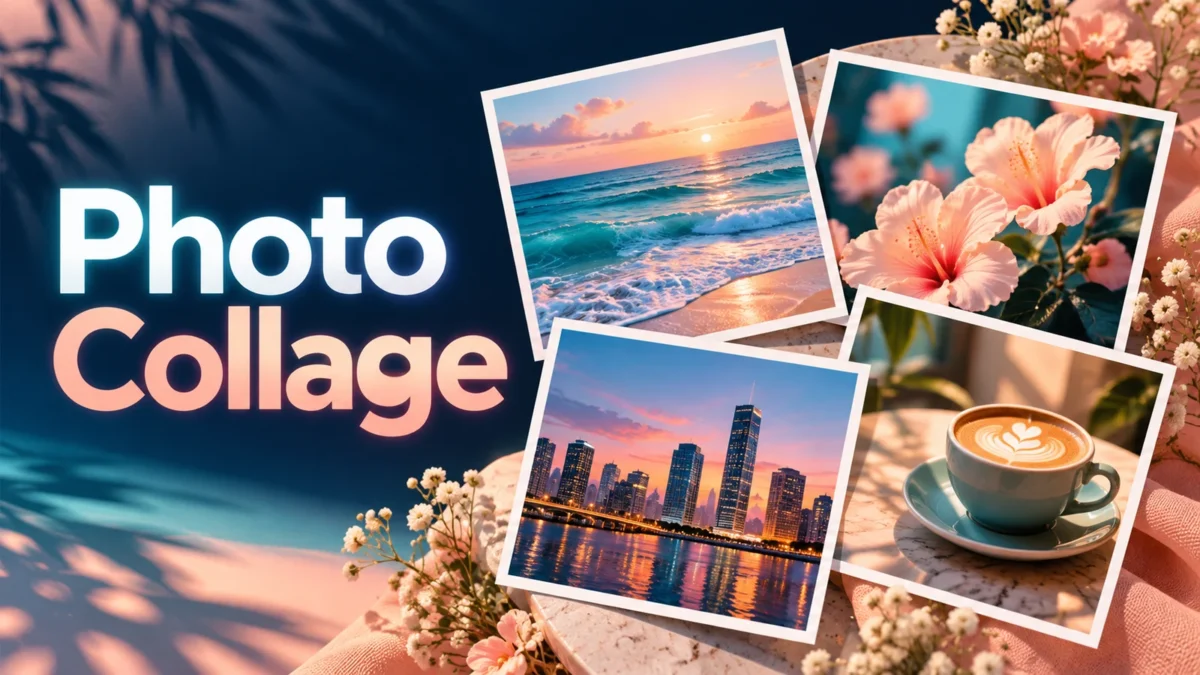
Bring two to six photos together in one downloadable collage. A photo dump often tells a small story through several moments: a walk, a meal, an interesting detail and a view from the end of the day. This tool turns those separate pictures into a single square or portrait PNG with consistent spacing. It is useful when you want one summary image instead of a series of separate uploads.
You choose the pictures, shape, spacing and background color. The editor lays them out in a fixed grid and shows the result before you save it. There are no accounts, cloud galleries or automatic social posts. It is a layout tool for photos you already have, without generated images, decorative stickers or a drag-and-drop design canvas.
How to create the collage
Use the file picker to select between two and six JPG, PNG or WebP images together. Select square for a 1080 × 1080 canvas or portrait for 1080 × 1350. Decide whether each picture should fill its cell with a center crop or be fully visible inside the cell. Set spacing from 0 to 40 pixels and choose a background color, then create a preview.
Examine the order, crop and empty space before downloading. The tool follows the order returned by the file picker; some devices may present that order differently from the sequence in which you tapped the files. There is no reorder control in this version. If the sequence is wrong, rename copies with a clear order or select a different set, then check the new preview. The visible result is the final authority for placement.
If you change a setting or select different files, make a new preview. Earlier download links are cleared so the previous collage does not get mistaken for the new one. Save the PNG, reopen it in your gallery and inspect it at a normal phone viewing size. Check small faces and text in the photos because a readable source can become difficult to read inside a small collage cell.
Practical ways to choose pictures
For a day-out recap, combine one wide location photo, a closer detail and a portrait. A three-photo layout uses three columns in one row, which can suit tall images particularly well. For four photos, the two-by-two layout gives each moment similar space. Six photos make two columns and three rows; portrait output can give those stacked pictures more height.
For a study-project summary, choose images that show different stages rather than six near-identical screenshots. Use complete-photo placement if a diagram or title must remain visible. For a club event, look for a balance of people, setting and activity. The tool does not ask anyone's permission or detect private information: check the source images yourself, including notices, badges, phone numbers and background screens.
Layout rules and photo placement
Two photos are placed in two columns. Three photos use three columns. Sets of four, five or six use two columns with enough rows to hold the selected files. In a five-photo collage, the last picture is centered in the final row. Every photo occupies one equally sized cell; the layout does not choose a larger hero picture or analyze which image is most important.
Fill cells uses a center crop. The scale is chosen to cover the available rectangle, so an image with a different aspect ratio loses some material near its edges. The tool does not detect faces or move the crop toward a subject. Show complete photo fits the entire picture instead, which can leave background-colored margins inside its cell. Choose this option for group photos, artwork, screenshots or any composition where cutting the edges would cause a problem.
Spacing includes the gap between cells and the outer border. A value of zero produces touching cells without an outer margin. At higher values, more of the background color is visible and less space remains for the pictures. Transparent areas in PNG or WebP inputs reveal that background. The exported collage has a filled background and is therefore an opaque image even if some source files are transparent.
File limits and image quality
Each source must be no larger than 25 MB and must decode to no more than 24 megapixels. The combined selected file size cannot exceed 60 MB. These are separate checks: six individually valid photos can still exceed the total allowance. Using smaller copies can help on a phone with limited memory. The output dimensions are fixed by the selected canvas shape, regardless of the original file sizes.
The downloadable file is PNG. It contains the entire assembled layout as one flattened image, not the original photos, a ZIP package or an editable project. PNG preserves the rendered layout without a further lossy export step, but resizing the source pictures into cells can still reduce visible detail. Large input dimensions do not create a larger collage, and the tool does not add real detail to a small or blurry photo.
Before assembly, a large source is internally reduced to a working copy with a longest edge of 1800 pixels. This avoids retaining all full-size decoded photos together. The final collage still uses the selected 1080-pixel-wide canvas. Check small text in the result because this intermediate resizing can soften fine detail.
Privacy, compatibility and troubleshooting
The collage code reads selected files and draws them locally with Canvas. It does not upload the photos, create a server-side album or store the layout history. Normal website resources, including advertising or analytics where enabled, can still make network requests. Keep your source files separately; refreshing the page removes the current selection and preview.
Use a recent Chrome, Edge, Firefox or Safari with JavaScript enabled. A mobile file picker must support selecting multiple files. If you only see one photo selected, return to the picker and use its multiple-selection option. HEIC, animated GIFs, PDFs and videos are not supported inputs. A format mismatch, damaged image or overly large decoded picture can prevent processing. Convert to a supported format and try a smaller copy when necessary.
Related tools and reading
- Correct rotated or mirrored photos
- Resize source photos before combining
- Compress a large collage export
For a collage containing original generated illustrations, first learn to describe each scene clearly. Write clearer image prompts in Gemini
Frequently asked questions
How many photos can I combine?
Select two to six photos. Every image must meet the individual size and format limits, and their combined file size must stay within 60 MB. A single photo is not a valid collage input.
What size and format do I download?
You download one PNG at either 1080 × 1080 or 1080 × 1350 pixels. It is a flattened collage; the tool does not export editable layers or a package containing all the original photos.
Why was someone's head cropped?
Fill cells uses a center crop and does not recognize faces. Switch to Show complete photo to keep the full image visible. You may then see colored margins inside the cell.
Can I change the order on mobile?
There is no manual reorder control. The file picker's returned order is used, so inspect the preview. Select again or prepare numbered source copies if your device makes choosing a consistent order difficult.
Are my pictures sent to the website?
This tool performs its photo layout locally and makes no image upload request. Other website resources may use the network. Downloading and later sharing your collage are separate from its local creation.
Why is the output blurry or slow to create?
Small source images can look soft when enlarged inside cells, while large sources use more memory during decoding. Try suitable smaller copies, close unnecessary tabs and check the exported file instead of relying only on a scaled preview.