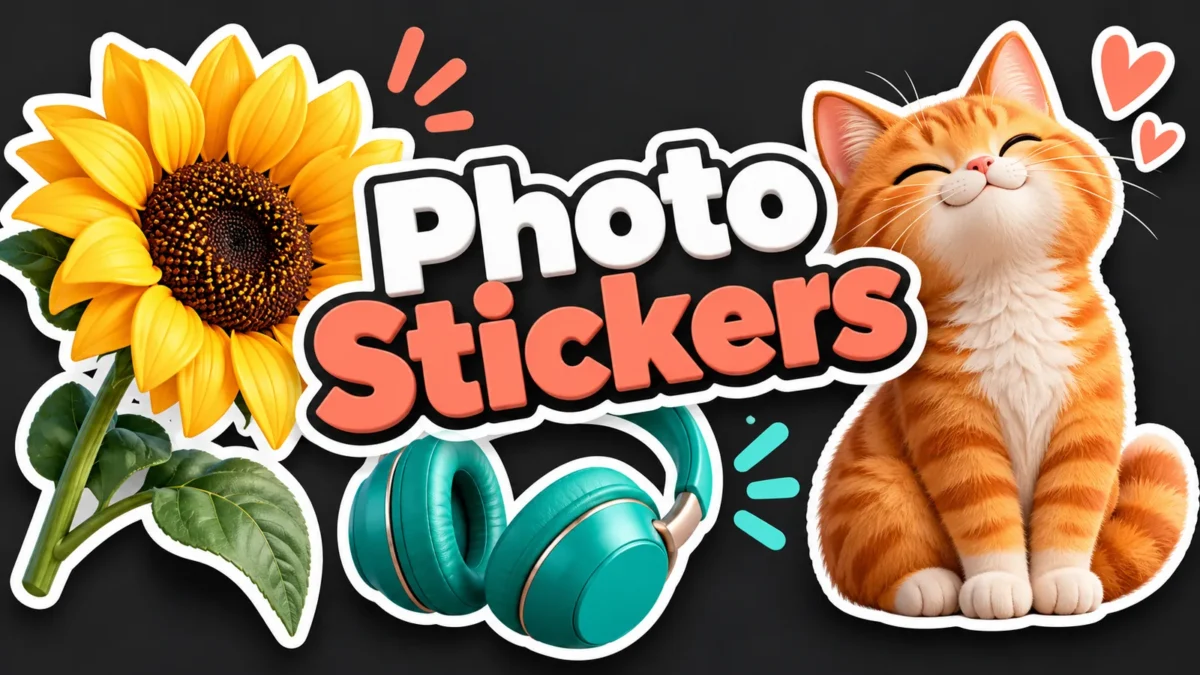
Make a photo into a reusable sticker image
A sticker can be a small illustration, a cutout of your pet, a flower, or an object from a photo that you want to place in another design. This tool adds a white outline and exports a PNG with transparency where the source or background-removal step allows it. You can keep an existing transparent background or remove a connected plain corner color before adding the outline.
The result is a sticker-style image file. It is not an installed WhatsApp sticker pack, an animated sticker, or an automatic cutout that understands every subject. A plain-background photo or an already transparent PNG is the best starting point. For a busy scene with hair, shadows, and overlapping objects, prepare the cutout using our related Background Remover first, then return here to style its outline.
How to create your sticker
Choose a JPG, PNG, or WebP image up to 20 MB. The decoded image must also be within 20 megapixels. Select Keep existing transparency / photo when your source is already cut out, or when you want to keep the whole picture. Select Remove connected corner color when the background is mostly one color and touches the image corners.
Adjust color tolerance and white outline width, then press Make sticker. Inspect the preview carefully, particularly small gaps, corners, and edges of the subject. Download photo-sticker.png when the result looks right. The original file is not overwritten. You can change the settings and generate another version, but each attempt starts from the selected original rather than progressively damaging the previous output.
What plain-background removal actually does
The corner-removal option samples colors at the four corners and removes matching connected pixels. The tolerance controls how different a nearby color can be while still being treated as background. A small tolerance is cautious and can leave a thin background fringe. A larger tolerance may remove more of a softly shaded background, but it can also remove part of the subject if its color connects to the same region.
This is a color-based operation, not AI subject recognition. A white shirt on a white wall is difficult because the shirt and wall can share both color and connection. A patterned background, motion blur, transparent glass, or wispy hair may require a more capable cutout workflow. If any important part disappears, lower the tolerance or use a prepared transparent source instead of increasing the setting repeatedly.
Keep the subject away from all four corners. If an ear, flower, or other important detail touches a corner, its color may be sampled as background and removed even at a low tolerance. For that source, disable corner removal or use an already prepared transparent cutout.
Outline size and export dimensions
The image is proportionally reduced when necessary so its longest side is at most 1200 pixels before padding. Smaller images are not enlarged by this step. The outline adds white pixels around the remaining visible shape, and a small transparent margin helps keep those pixels away from the file edge. A zero-width outline keeps the image without the decorative white border.
Choose a thinner outline for a detailed illustration and a thicker one for a bold sticker used against a busy background. The border is generated from the shape of the image's transparency. If your photo still has a solid rectangular background, the outline follows that rectangle rather than a person or object inside it. This is why preparing the cutout matters more than simply turning the width slider up.
Examples that work well
A flower photographed against a plain wall can become a simple sticker after corner removal, provided its petals are a different color from the wall. An original transparent illustration usually needs only an outline. A pet cutout may look better with a modest border that follows the ears and tail without hiding fine detail. For an object you plan to use in a collage, compare it against both a light and a dark canvas.
Use photos and artwork you own or are allowed to edit and share. If another person appears in the image, consider whether they are comfortable with it becoming a reusable sticker. Check for visible ID cards, house numbers, addresses, or private background details. Removing a background can improve composition, but it is not a complete privacy review and does not give permission to reuse someone else's image.
Privacy, formats, and mobile use
The selected photo is processed by this tool in your browser rather than sent to a photo-editing backend. This does not mean the entire website makes no network requests: normal page resources, advertisements, and analytics can still load separately. Generated previews disappear when the page is refreshed. Downloaded files remain on your device, and the source image stays where you selected it.
PNG is used because it can preserve a transparent background. Saving the sticker as JPG later replaces transparency with a solid background. Some apps display transparent images over black or white, which can make the result look different from this checkerboard preview. Open the downloaded PNG in an editor that supports transparency before deciding that the background has returned.
Troubleshooting imperfect edges
If the subject loses parts, choose a lower tolerance or turn corner removal off. If a background fringe remains, try a slightly higher tolerance and check the entire outline again. If the preview remains a rectangle, the background has not been removed or the source has no transparent cutout. A thick outline does not hide all color contamination around a badly cut edge.
If a file will not open, confirm that it is an actual JPG, PNG, or WebP rather than a renamed HEIC or unsupported format. Use our image format converter when needed. Very large images should be resized before loading. A dark patch in the preview can be the checkerboard showing through transparent pixels, so judge the downloaded result in a suitable editor rather than from a thumbnail alone.
Related tools and reading
- Image Background Remover – Transparent PNG
- Convert JPG, PNG and WebP Images Online
- Image Compressor to 20KB, 50KB or 100KB
Before sharing personal details in a profile or image, read about the risks of exposed information. How exposed personal information can be misused
Creating an illustration for a sticker? Plan the subject and a simple background before exporting it. Writing clear image prompts with Gemini
Frequently asked questions
Does it remove any background automatically?
No. It offers removal of connected corner colors and works best with plain backgrounds. Use a prepared cutout for complicated photographs.
Is the download a WhatsApp sticker pack?
No. It is one PNG image. A messaging app may provide a separate way to import or create stickers from it, subject to that app's rules.
Can I use an existing transparent PNG?
Yes. Keep existing transparency and choose an outline width. The border follows the visible shape instead of a solid background rectangle.
Why did part of the subject disappear?
The subject may share the sampled background color and connect to it. Lower tolerance, disable removal, or prepare a more accurate cutout elsewhere.
Does the tool enlarge my small photo?
No. The size step only reduces large images. Adding padding and an outline does not reconstruct missing detail in the original subject.
Why does my PNG look white in another app?
The app may show transparency against a white canvas. Check it in a transparency-aware editor; converting to JPG also removes transparent pixels.
Can I make and download a sticker privately on mobile?
Use a modern phone browser with JavaScript and image decoding support. This tool processes the selected image locally without sending it to an editing backend. Normal website resources may still load separately. Download the PNG to Files or Downloads, then open it in an editor that supports transparency.