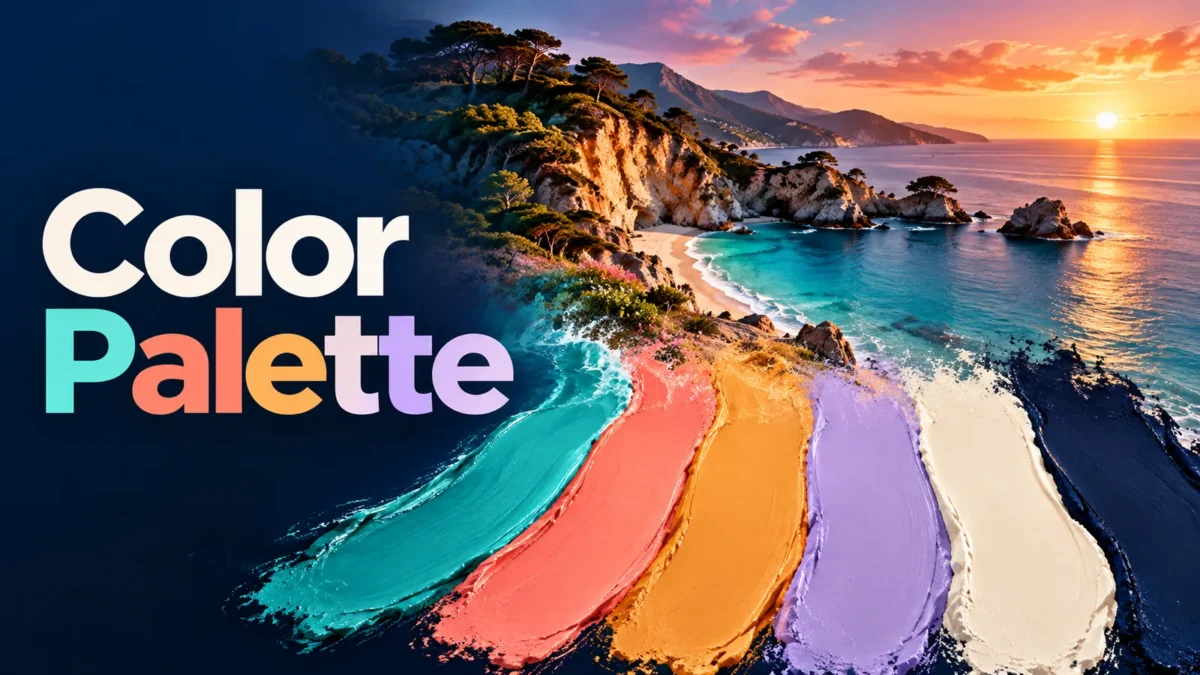
Find a small set of representative colors from a photo and save them for your next design. This Image Color Palette Extractor samples the visible picture, groups similar colors and returns HEX and RGB values. Use it to plan a poster, coordinate a personal photo theme, choose a starting point for an illustration or compare the mood of different reference images.
The result is a compact approximation of the picture's dominant color groups. It is not a list of every pixel color or a guarantee that a particular object has been identified. A tiny bright accessory can be visually important to you while remaining too small to appear in the extracted set. Treat the palette as a practical design starting point and make your final choices in the context where the colors will be used.
How to extract and save colors
Choose one genuine JPG, PNG or WebP image from your device. Select three, five or six colors and create a preview. The results show a swatch, a HEX code and an RGB value for each returned color. Press Copy HEX to copy a code when your browser permits clipboard access. If copying is unavailable, select the visible code and copy it manually.
You can also download a PNG reference sheet containing the source picture, swatches and HEX labels. The separate JSON file stores the HEX and RGB values in a simple structured list. It does not contain the original image or an editing project. When you change the image or requested count, create another preview: old results and links are removed as soon as the settings change.
Practical design examples
For a college event poster, start with a reference photo of the venue or an existing illustration. Extract five colors, then choose one background color, one accent and a suitable text color. Do not assume the tool has selected a readable foreground-background pair. A palette can contain several similarly light shades that look attractive together but do not provide sufficient text contrast.
For an image-based social theme, compare a beach photo and a city evening scene. The first might suggest cool blues and pale sand tones; the second may emphasize darker neutrals and warm highlights. Select colors that support the content rather than using all the returned swatches equally. If you want a color from a small specific object, crop a separate copy around that object before extraction. The tool has no point eyedropper or object selection brush.
How the palette is estimated
The image is fitted into a 256 × 256 transparent sampling canvas without cropping. Transparent margins from the fit are ignored rather than counted as black. Pixels with an alpha value below 128 are skipped. Remaining pixels are grouped into coarse RGB bins, and nearby groups are clustered into the requested number of representative colors. Repeated refinement finds approximate centers for those groups.
Each returned color is a rounded RGB average for a cluster, so it may not match any one original pixel exactly. The ordering emphasizes clusters with more sampled pixels. The clustering uses RGB distances rather than a color appearance model, and the downsample reduces fine spatial detail. These choices keep processing lightweight but can merge subtle shades or miss tiny accents. Different editors can legitimately return different palettes from the same source.
The requested count is an upper limit. A completely flat image may yield only one useful color, and an image with fewer distinct sampled groups can return fewer swatches than requested. A fully transparent source has no sufficiently opaque colors to extract and produces an error. These outcomes reflect the available image data rather than a failed download or a missing color code.
HEX, RGB and using the downloads
A six-digit HEX code begins with a hash symbol and represents red, green and blue channel values. The RGB display expresses the same rounded values as three numbers from 0 to 255. Copy the HEX code into a design application's color field if it accepts that format. The JSON export pairs each hex string with its RGB array, making it convenient for a small design or development reference.
The reference sheet is 1200 × 700 pixels. Its source-photo area fits the complete image, followed by colored swatches and readable labels. It is a visual reference, not a print color proof. Screen settings, browser color handling, image profiles, surrounding colors and printers can affect perceived color. This tool does not provide CMYK, Pantone matching, color calibration or measured color accuracy for physical products.
Input limits, privacy and troubleshooting
A source file must be at most 25 MB and must decode to no more than 24 megapixels. JPG, PNG and WebP are accepted; HEIC, RAW, SVG, video and animated GIF inputs are outside this editor's supported list. Convert unsupported still images first. Renaming a file extension does not make its actual encoding valid. Extremely large pictures can still be demanding during decoding, even though the later color sample is small.
All sampling and clustering happen in the browser, and this tool does not upload the selected image. It does not keep a server-side palette history or send the colors to a design account. Other website features may load ads, analytics or ordinary network resources independently. Save your PNG or JSON before refreshing the page. Use a recent Chrome, Edge, Firefox or Safari with JavaScript enabled and a working image decoder.
If a result seems wrong, examine the whole source rather than only the subject. A large background can dominate the count. Crop the reference to the area that matters and try again. If several colors are close together, request fewer colors for a simpler starting set. If a label is difficult to read in a tiny on-screen preview, open the downloaded reference sheet at its original size.
Related tools and reading
- Resize a source image for your reference
- Convert an unsupported still-image format
- Check the source width and height
When generating a color reference, describe the subject, lighting and scene clearly before extracting its palette. Write clearer image prompts in Gemini
Frequently asked questions
Can I download the palette instead of only copying it?
Yes. Save a 1200 × 700 PNG reference sheet or a JSON list of HEX and RGB values. The JSON contains the color values, not the source picture or an editable design document.
Why are there fewer colors than I requested?
An image can contain fewer distinct sampled groups, especially when it is flat or nearly uniform. The tool returns usable nonempty clusters rather than inventing extra colors to fill the selected count.
Does it extract the exact color of a particular object?
No. It summarizes the whole sampled image. Crop a separate source copy around an object when that area matters. Returned colors are cluster averages and can differ from individual source pixels.
Why does Copy HEX fail on my phone?
Clipboard access depends on browser permissions and context. Select and copy the displayed code manually, or use the JSON file. A blocked clipboard does not prevent image processing or palette export.
Is the photo uploaded, and what happens to transparency?
The tool processes locally. Sampling skips pixels with alpha below 128, including transparent fit margins. The PNG reference sheet itself has a filled dark background and is not a transparent cutout.
Are these colors guaranteed to work for text or printing?
No. Check text contrast in the finished design and use a suitable print workflow when necessary. The tool does not perform accessibility contrast testing or calibrated screen-to-print color matching.