 Vista

A USB-C port looks the same on a phone charger, a budget laptop and a high-end workstation, yet they can behave very differently. One USB-C port may only charge and move data slowly; another may drive two monitors and transfer data at 40 Gbps. The shape of the plug tells you almost nothing. What matters is which standards and features the device maker has actually built into that port. This guide separates the connector from the protocols that run over it, explains USB4 and Thunderbolt, shows how to read port symbols, and gives a practical way to check whether a port supports video output or charging. It is based on published specifications and manufacturer information; always confirm the exact capabilities in your own device’s manual or specification sheet.
USB-C connector versus USB standards
USB-C is only the physical connector: a small, reversible oval plug. It is not a speed or a feature. The same connector can carry a basic USB 2.0 signal (480 Mbps, no video), fast USB 3.2 data, USB4, Thunderbolt, or a charging-only connection. This is why two ports that look identical can behave differently, and why guessing from the shape is unreliable.
Data rate, charging and display are separate capabilities
Three things are independent on a USB-C port, and a device may support any combination of them:
- Data speed: for example 480 Mbps (USB 2.0), 5 Gbps, 10 Gbps, 20 Gbps, 40 Gbps or 80 Gbps.
- Charging (Power Delivery): USB Power Delivery on USB-C can go up to 240 W according to Microsoft’s description of the standard, but a given laptop or charger supports only the wattages its maker specifies.
- Video output: usually through DisplayPort Alternate Mode, or DisplayPort carried inside USB4 or Thunderbolt.
A fast port is not automatically a video port, and a port that outputs video is not automatically a fast data port.
USB4 and Thunderbolt compatibility chart
| Standard | Typical top speed | What it adds |
|---|---|---|
| USB 3.2 (Gen 1, Gen 2) | 5 and 10 Gbps | Data; video and charging only if the maker adds them |
| USB4 (version 1) | 20 or 40 Gbps | Tunnelled DisplayPort and PCIe, backward compatible with USB 3.2 and USB 2.0 |
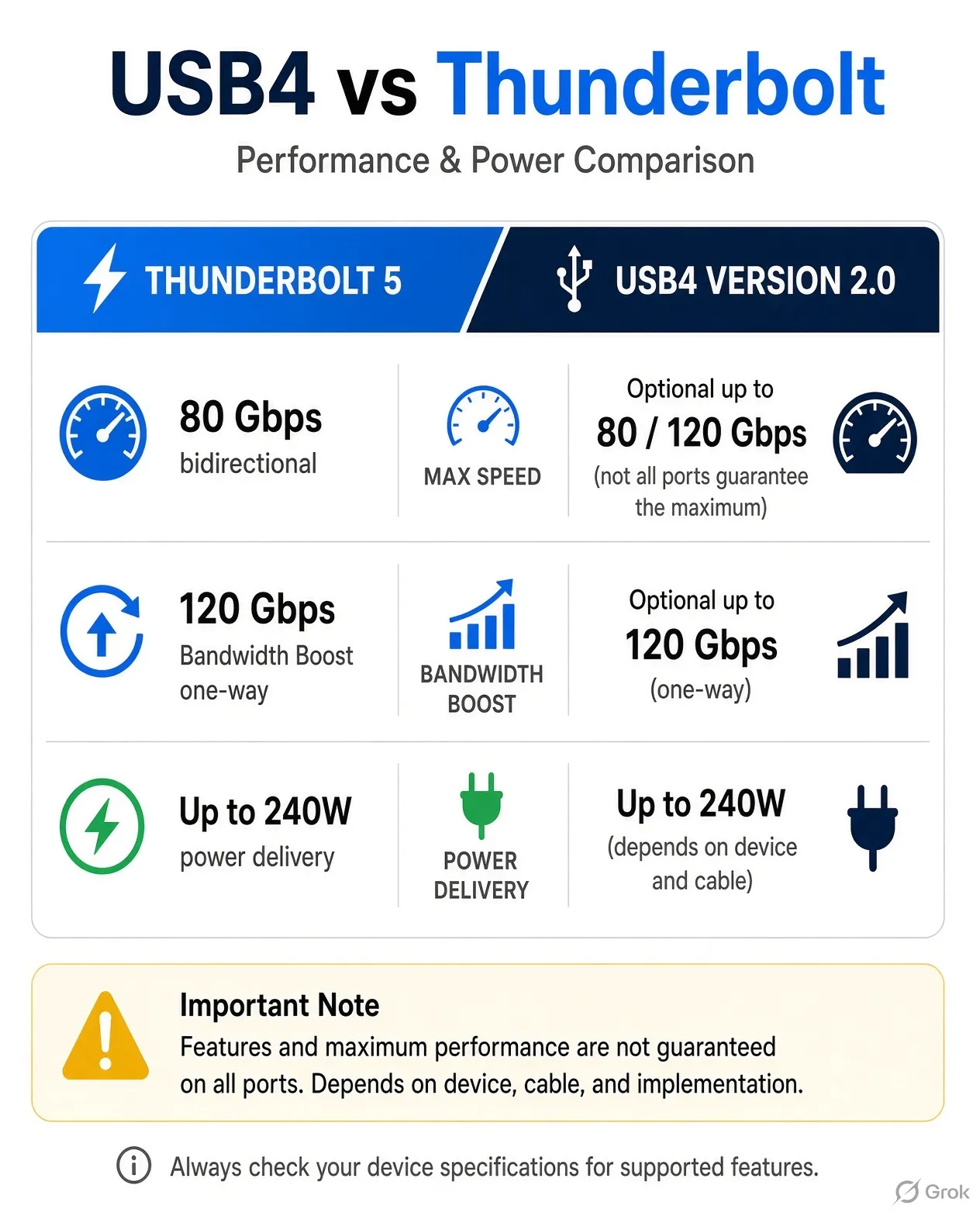
| USB4 version 2 | up to 80 Gbps | Higher bandwidth, including asymmetric modes for displays |
| Thunderbolt 4 | 40 Gbps | Intel-certified, with required minimums for video and data |
| Thunderbolt 5 | 80 Gbps, up to 120 Gbps with Bandwidth Boost for video | Higher minimums than Thunderbolt 4 |
Intel states that Thunderbolt 4 requires a minimum of 40 Gbps and Thunderbolt 5 raises the minimum to 80 Gbps, with Bandwidth Boost providing up to 120 Gbps (transmit) when the system detects heavy video traffic. USB4 is defined by the USB Implementers Forum (USB-IF), while Thunderbolt is a separate Intel certification that is a superset of USB4 requirements.
Generations, certified cables and fallback
- Backward compatibility: a USB4 or Thunderbolt port should also work with older USB devices, but only at the speed and features that both ends and the cable support.
- The slowest link wins: port, cable and device each limit the result. A 40 Gbps port with a basic charging cable will not give 40 Gbps.
- Cable matters: some cables carry only USB 2.0 data and charging, and some have an e-marker chip that reports their power and speed capability. For high speeds and video, use cables that are certified for that speed and are labelled accordingly.
- Thunderbolt 4 vs USB4: Thunderbolt 4 products are certified to meet higher minimum requirements. A plain USB4 port may have fewer guaranteed features, so check its specification.
USB-C symbols and cable markings
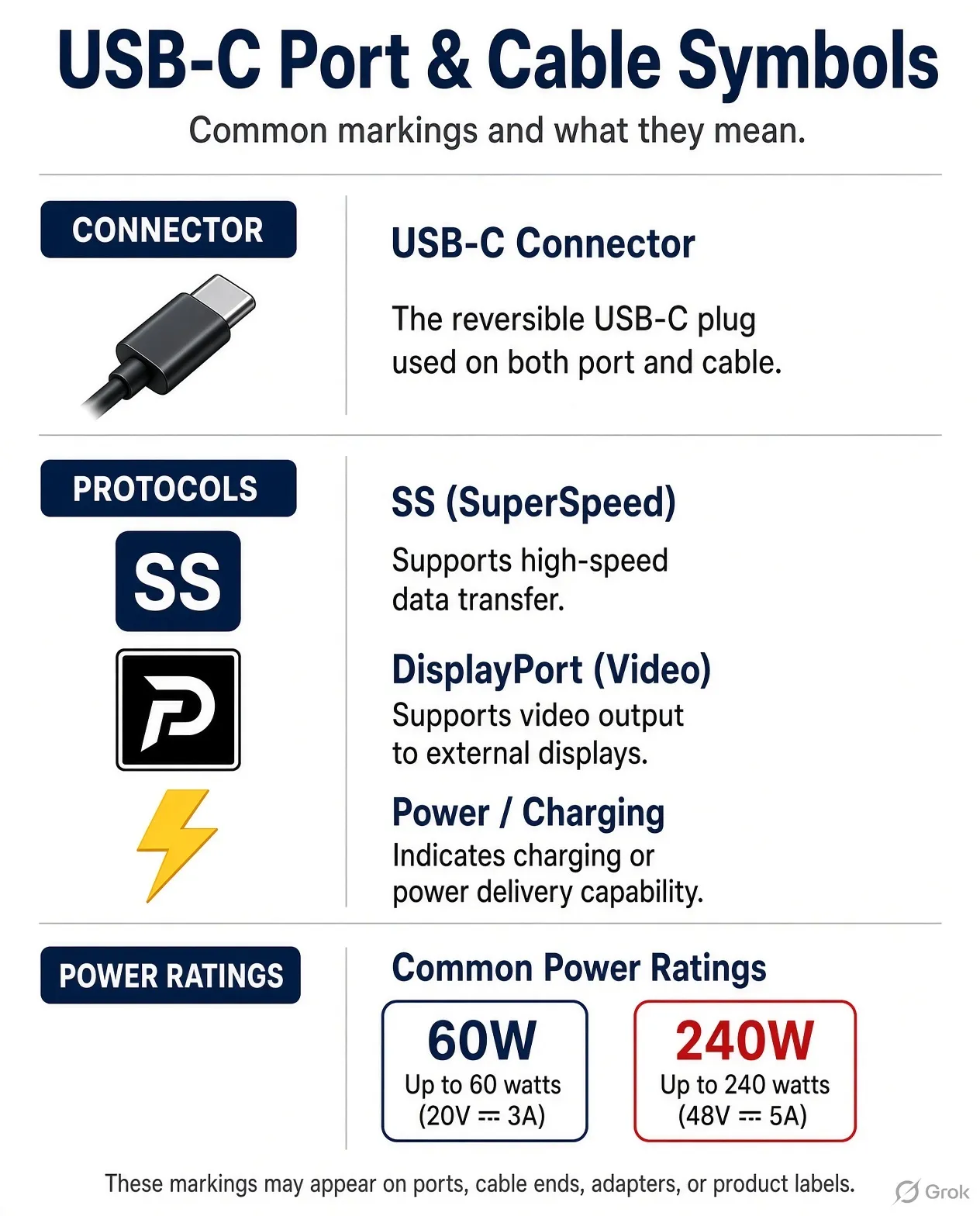
Symbols differ between brands and generations, and some ports have no markings at all. Commonly seen marks include:
- Lightning-bolt Thunderbolt symbol: a Thunderbolt-certified port, which also supports the USB4 and DisplayPort functions Intel requires for that generation.
- USB-IF speed logos such as “USB 10Gbps” or “USB 40Gbps”: USB-IF simplified its logo scheme around speed, with these marks appearing on ports, cables and packaging.
- DisplayPort (DP) symbol: the port supports video output through DisplayPort.
- Battery or charging icon, or “PD”: the port supports charging. It does not guarantee a particular wattage.
- SS (SuperSpeed) mark: an older marking for USB 3.x data, not a guarantee of video.
Identifying a port without guessing from shape
Do not infer capability from the shape of the connector or the colour of the plastic inside it. Instead, look at the marking next to the port, then confirm with the device’s manual, the manufacturer’s specification page or the system information tool. If the specification lists “Thunderbolt”, “USB4” or “DisplayPort Alt Mode” for that specific port, you can rely on it. If it lists only “USB-C”, assume basic data, and confirm before expecting video.
How to check video output and charging support
- Look for a Thunderbolt, USB4 or DisplayPort mark next to the port.
- Open the laptop or phone specification page and search for “DisplayPort Alt Mode”, “video output”, “Thunderbolt” or “USB4” for the exact port.
- Check the monitor or dock side too: it must accept the signal type your port sends.
- Use a cable made for video or high-speed data. A charging-only or USB 2.0 cable will not carry video.
- For charging, compare the charger’s wattage with what your device’s maker says it needs.
Laptop, monitor and cable troubleshooting examples
- Cable fits but the monitor stays dark: the port may not support video, or the cable may be data-and-charging only. Test with a cable rated for video, or try another port on the same laptop, because ports on one device can differ.
- Dock works but is slow: the cable or one end may be limited to a lower speed than the dock supports.
- Charges slowly: the charger or cable may deliver fewer watts than the laptop expects.
- Only one port outputs video: some laptops enable video on only some of their USB-C ports. Check the specification for each port.
Worked examples, practical checks and limitations
Illustrative example: a laptop has two USB-C ports. Port A is marked with a lightning bolt and port B has no marking. Its specification lists Thunderbolt 4 for port A and “USB 3.2 Gen 2 (10 Gbps), Power Delivery” for port B. Port A can drive displays and docks at up to 40 Gbps with a suitable cable. Port B can transfer data at 10 Gbps and charge, but the specification does not list video, so you should not expect a monitor to work there. The numbers are examples; read your own device’s sheet.
Limitations: this guide is general and cannot list every device. Marking practices change, and some manufacturers use symbols differently. Specifications, logos and certification rules are updated over time, so confirm current details from USB-IF, Intel or your device maker.
Common mistakes and when to seek expert confirmation
- Assuming every USB-C port outputs video or charges at high wattage.
- Judging a cable by its plug shape or its price.
- Using a thin phone-charging cable for a dock or monitor.
- Confusing USB4 with Thunderbolt: Thunderbolt adds certified minimums, USB4 alone may not.
If a device or dock does not work as its specification promises, contact the manufacturer’s support or an authorised service centre rather than opening the device.
Frequently asked questions
How to know if USB-C supports video output?
Look for a Thunderbolt, USB4 or DisplayPort mark beside the port, then confirm in your device’s specification that the exact port supports DisplayPort Alt Mode, USB4 or Thunderbolt video. Also use a cable that is rated for video.
What is the difference between USB4 and Thunderbolt?
USB4 is the open USB-IF standard; Thunderbolt is Intel’s certification with higher minimum requirements, such as 40 Gbps for Thunderbolt 4. Thunderbolt ports are designed to be compatible with USB4.
What do USB-C port symbols mean?
A lightning bolt means Thunderbolt, a “USB 40Gbps”-style logo indicates the speed, a DP symbol indicates DisplayPort video and a battery icon or “PD” indicates charging. Marks vary, so verify in the specification.
Is Thunderbolt 5 compatible with older Thunderbolt and USB devices?
Thunderbolt 5 is designed to work with earlier Thunderbolt and USB4 devices, but the connection runs at the lower of what the port, cable and device support.
Can any USB-C cable carry video or fast data?
No. Some cables are for charging and USB 2.0 data only. For video or high speeds, use a cable labelled for that speed or for Thunderbolt or USB4.
Conclusion
Treat USB-C as a connector, not a promise. Read the port marking, check the device specification for data speed, display and charging separately, and pair it with a cable made for what you need. When in doubt, the manufacturer’s sheet is the final word.
Sources
- Intel: Thunderbolt 5 standard announcement
- Intel: Thunderbolt technology overview and comparison
- Microsoft: Ending USB-C port confusion
- TidBITS: USB simplifies branding (USB-IF logo scheme)






















Share Your Opinion
Comments are closed on this post.