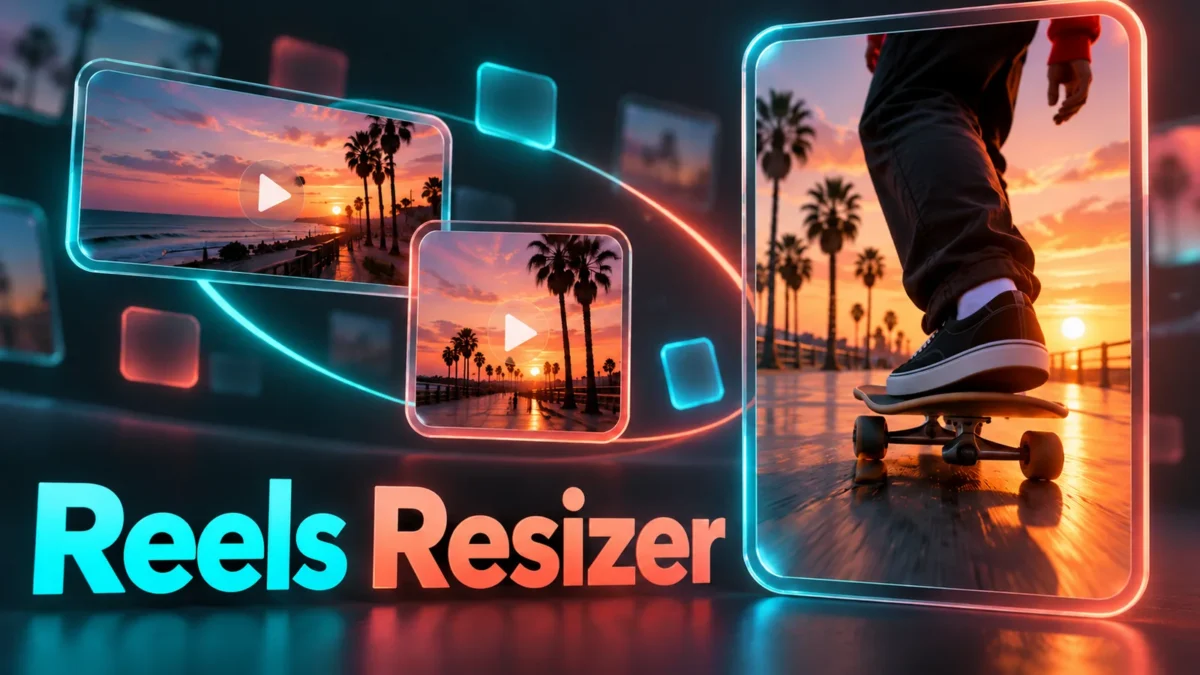
Make a video fit a new canvas
A landscape clip can look awkward in a portrait reel: either the subject disappears into a crop or the picture becomes stretched. This resizer gives you two explicit choices. Keep the entire frame with colored margins, or fill the selected canvas using a center crop. Preview the result before sharing it, especially when faces, captions or important action sit near the edges.
The tool records a new WebM video locally in your browser. It is intended for short clips, not a complete video editing project. You choose the canvas shape, margin color and whether to retain source sound. It does not add automatic captions, rearrange scenes, improve blurry footage or promise compatibility with a particular social platform's upload rules.
How to resize a short clip
Choose an MP4, WebM or MOV file that your browser can decode. The file must be no larger than 100 MB, no longer than 60 seconds, and have at most 16 million pixels in each decoded frame. Both frame dimensions must be at least 240 pixels. A familiar extension does not guarantee that the video codec inside is supported.
Select portrait at 720 × 1280, square at 720 × 720, or landscape at 1280 × 720. Choose Complete frame to preserve the visible image; this may leave margins. Select Center crop to fill when you accept losing material around the sides or top and bottom. The crop stays centered and does not follow faces or moving subjects.
Choose a margin color and an audio option, then create the preview. Processing runs in real time: a twenty-second clip generally needs roughly its playback duration, plus setup and export time. Keep the tab visible, avoid locking the phone, and wait for the recorded-video player and download link. Cancel stops processing and discards the partial output.
Examples that help you choose
For a landscape skateboarding clip with the rider moving across the picture, Complete frame is usually easier to review because the whole action stays visible. The portrait canvas will have margins above and below. Pick a deliberate background color rather than trying to hide the margins by stretching the rider or the surroundings.
For a centered close-up, a portrait center crop may be suitable. Watch the entire resulting video, not just its first frame. Someone can enter the shot later and be cut off even though the opening looks fine. For a square preview of a product, check that packaging text and hands remain inside the canvas throughout the clip.
A silent mood video and a spoken explanation need different sound choices. Silent output deliberately removes sound. Keep source sound routes the decoded audio through the browser's audio system into the recording. An original silent video remains silent even when an audio track is included. The tool does not detect or repair missing source sound.
Dimensions, quality and file format
Export is WebM, with a browser-supported WebM codec selected at runtime. The filename uses .webm; it is not an MP4 file with a changed extension. A browser that cannot record WebM receives an explanatory error. If your destination requires MP4, a separate genuine conversion is needed after this step; renaming the download is insufficient.
The canvas is recorded at a requested 24 frames per second with a target video bitrate of approximately 2.5 Mbps. These are recording settings, not promises of perfectly constant frame timing or an exact final file size. Device performance, codec behavior and clip content can affect the result. The original is decoded and re-encoded, so this is not a lossless operation.
A small source can be enlarged to fill the chosen canvas, but enlargement does not recover genuine detail. Keep realistic expectations for compressed messages or blurry downloads. Large sources may lose fine detail when reduced to 720 pixels on the short edge. Compare the downloaded result with your original when readable text or product details matter. The browser recording may lack duration metadata or a seeking index understood by some players. A player can initially show an unknown or unbounded duration even though the clip contains a finite recording. If reliable seeking or a specific editing workflow is essential, inspect the saved file in the intended player and use a suitable conversion or remuxing tool when needed.
Privacy, browser support and troubleshooting
The custom resizer reads the file locally, draws frames onto Canvas and records the resulting stream. Its implementation does not upload the selected video or store a server-side editing history. Ordinary website resources, such as advertising or analytics where enabled, may still use the network. Refreshing the page removes the current selection and preview.
Use a recent browser with Canvas stream capture, MediaRecorder and a supported WebM encoder. Recent Chrome, Edge and Firefox are practical starting points, but actual capability is checked rather than assumed. Safari and some mobile browsers may reject WebM recording. You do not need to grant camera or microphone access: source sound comes from the chosen file.
If decoding fails, try a shorter, smaller copy with a compatible codec. If recording stalls, cancel, bring the tab to the foreground and try again. Switching tabs or putting the phone to sleep can disrupt frame updates. Replay the exported video to inspect audio, timing and crop; a successful preview message alone cannot establish that every frame is suitable.
Related tools and reading
Before sharing a resized clip, review addresses or personal details visible in its frames. Risks of exposed personal details
Frequently asked questions
Can I download MP4 directly?
No. This resizer exports a genuinely recorded WebM file. MP4 input can be decoded when its codec is supported, but input format and export format are different. Use an actual converter if your destination requires MP4.
Why are there colored bars around my video?
Complete frame preserves the entire source without distortion. When source and canvas ratios differ, margins fill the unused space. Center crop removes the bars by discarding some visible material instead.
Does it keep the original audio?
Choose Keep source sound to route decoded source audio into the recording. Silent output removes it. A source with no audible sound will not gain sound, and browser recording may alter compression or timing.
Can I use it on a phone?
You can try a supported mobile browser. Keep the screen awake and the tab visible during real-time recording. A browser lacking WebM export or Canvas capture will show a limitation rather than create a fake download.
Are my videos uploaded or saved online?
The resizer code does not upload them or keep an online history. Normal site resources can still make network requests. Download and store the result yourself before leaving or refreshing the page.
Why did the quality or duration change slightly?
The tool records playback instead of copying the original compressed stream. Re-encoding, device load and frame scheduling may change fine detail or recorded timing. Inspect the completed file and retain the original as your source.