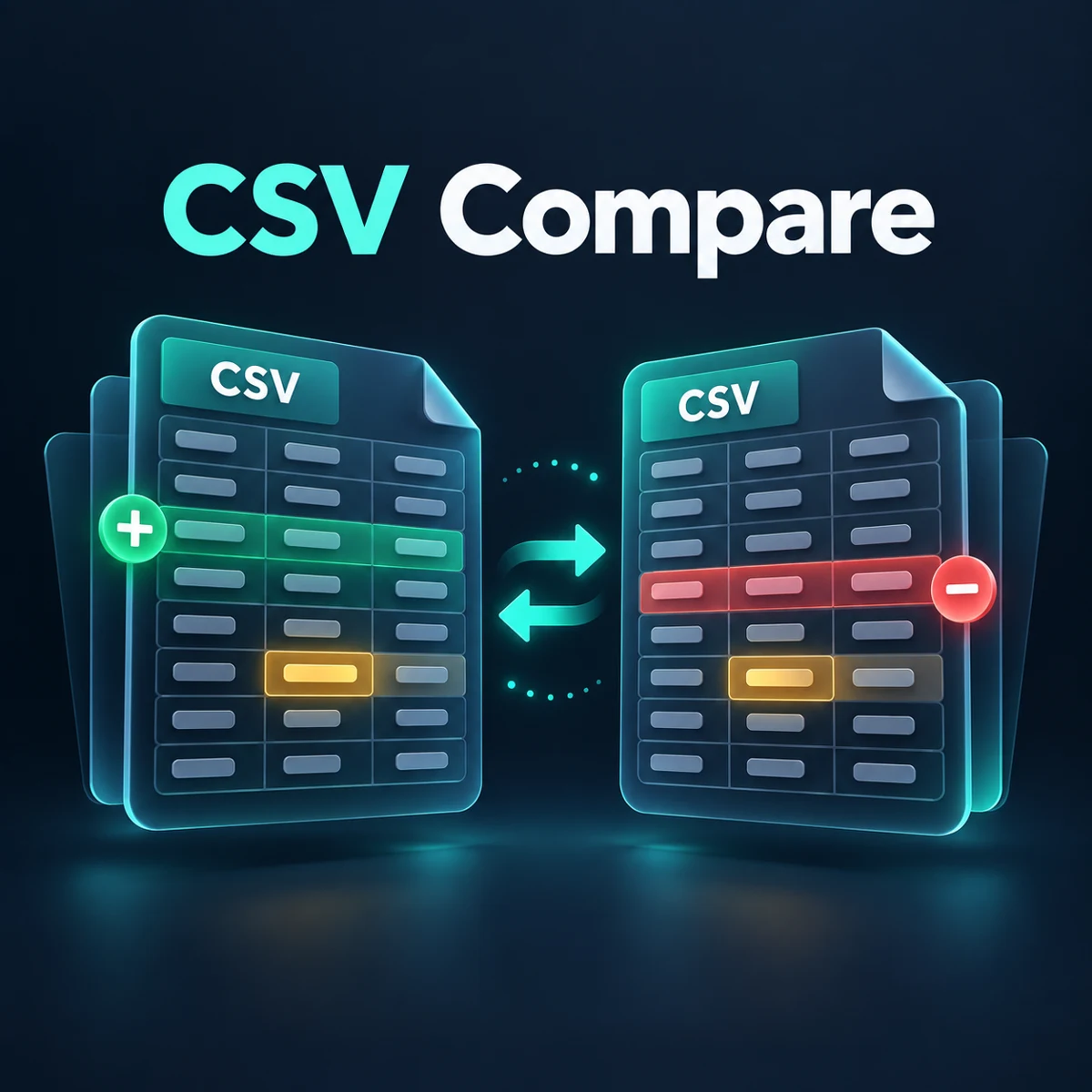
Compare an old CSV export with a new one. Match records by a unique ID, see which rows were added or removed, and check exactly which cells changed.
Compare two CSV files
Old = before, New = after. UTF-8 CSV/TSV stays in this browser. First row must be the header.
Preview: first 100 differences; download includes the full report.
How to compare two CSV files
- Choose the old and new UTF-8 CSV files, or paste their contents.
- Select the separator: comma, semicolon or tab.
- Click Read columns, then choose a unique ID column. Use row position only when the row order should match.
- Click Compare CSV. Review the counts and the first 100 differences.
- Download the JSON report for the complete list of added, removed and changed records.
Example: compare two exports
The old file contains IDs 001, 002 and 003. The new file contains 002, 001 and 004, with a new city for ID 002. Match by ID: 004 is added, 003 is removed, 002 is changed and 001 is unchanged. Reordering 001 and 002 is not a data change in this mode.
Choose the right matching column
Use an ID that appears once in each file: a record ID, product code or another stable value. Leading zeros remain part of the ID, so 001 and 1 are different. Empty or duplicate keys stop the comparison with a message. If an ID itself changes, that record appears as removed and added.
Row position compares the first data row with the first, second with second, and so on. Use it when there is no unique key and order is meaningful. Reordered rows can appear changed in this mode. Composite keys and fuzzy matching are not included.
Supported files and limits
Both files must have the same header names in the same order, and every data row must have the same number of cells as its header. UTF-8 CSV and TSV are supported; XLSX, XLS and PDF are not. Quoted separators, double quotes inside quoted fields, and newlines within quoted fields are read as cell content.
Each file: up to 2 MB, 1 million characters, 10,000 data rows, 64 columns, 100,000 cells and 32,767 characters per cell. Completely empty lines are skipped. Header-only files are valid and contain no data rows.
Matching rules and the report
Values are compared as text, with exact case and spacing by default. Hindi, long IDs, date-like values and formula-looking text are not converted to numbers or executed. Optional outer-space trimming affects all cells and matching keys, while the report retains original values. Internal spaces still matter.
Changed counts refer to rows, not cells. One row can have several changed cells in the preview. The JSON report contains the header array, matching mode, selected key, added and removed row arrays, changed rows with before/after arrays and cell details, and the unchanged count. Download includes every difference within the limits; preview shows at most 100 entries.
If the result looks wrong
Check the separator, header order, unique IDs and encoding. A semicolon file read as comma may look like one column. Use the same separator for both inputs. Choose an ID column when row order differs. If spaces are meaningful, keep trimming off. Editing text, files or options clears the previous report.
Privacy
This tool reads selected files and compares pasted text in your browser. It does not upload their contents. Save the JSON report before leaving the page. The report can contain the data you compared, so share it only as intended.
Frequently asked questions
Can I compare CSV files with different row order?
Yes. Click Read columns and choose a unique ID column. Row order does not affect matching by ID.
Does this show changed cells?
Yes. Changed rows include the column name and old/new values for each different cell.
What happens if an ID repeats?
The tool stops instead of choosing a row arbitrarily. Select a unique key, or use row position if that suits your data.
Can I compare Excel files directly?
No. Export both sheets as UTF-8 CSV first. Both files need identical headers and column order.
Will leading zeros and long IDs be preserved?
Yes. Cells stay as text. 00123 and 123 are different values.
Can the files have different columns?
No. This version requires the same headers in the same order. Align the columns before comparing.
How do I download all differences?
Use Download JSON report. It includes all differences within the limits, even if the preview is shorter.
Related tools
CSV to Excel with leading zeros · Compare two pasted lists · Remove duplicate lines · All tools