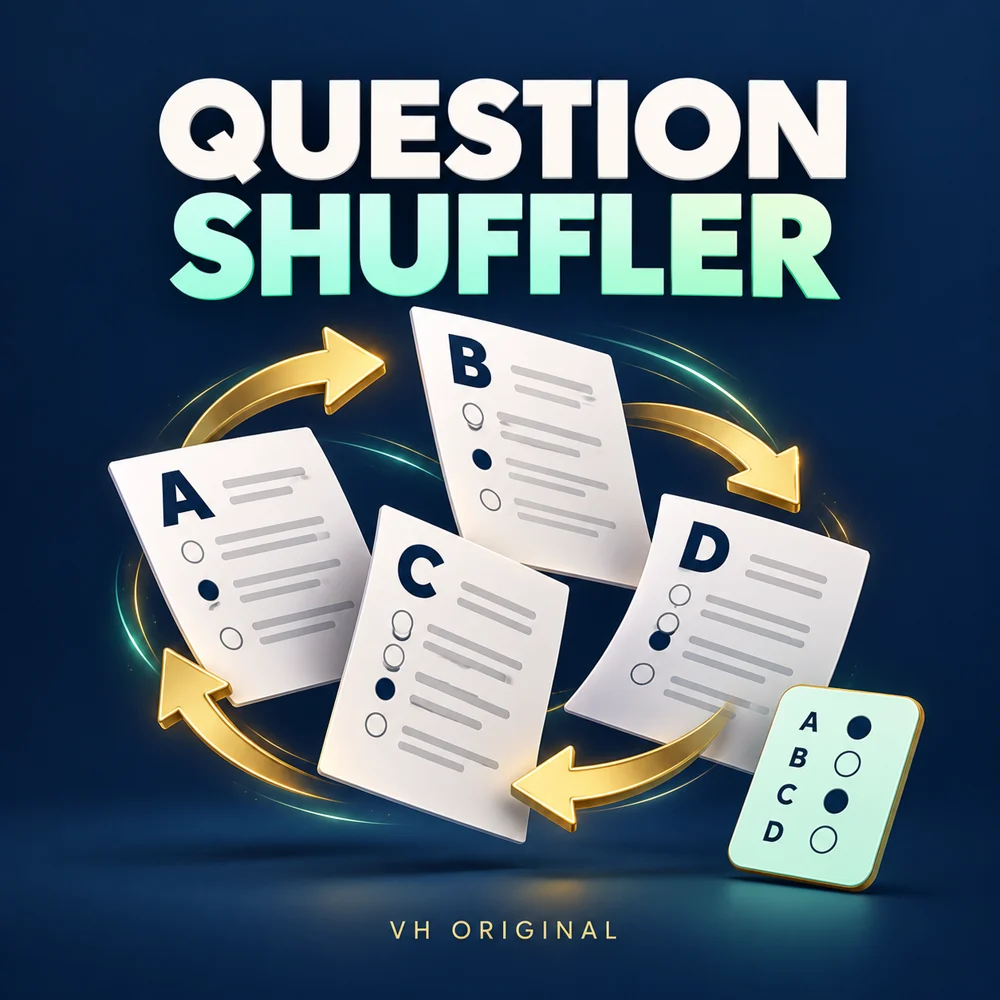
Turn one reviewed MCQ question bank into up to four classroom paper sets. The tool changes question order and, when enabled, option order while keeping the correct answer attached to its original option. Student papers and teacher answer keys are separate downloads. Processing happens in your browser without an external API or question upload.
How to make Set A, B, C and D
Use Load example to see the JSON format, then replace the sample questions with your own. Each question needs question, options and answer fields. Answer uses a one-based position: answer:2 means the second option is correct. Choose one to four sets, select whether options may move, and build. The result lists student papers; corresponding teacher keys are separate files.
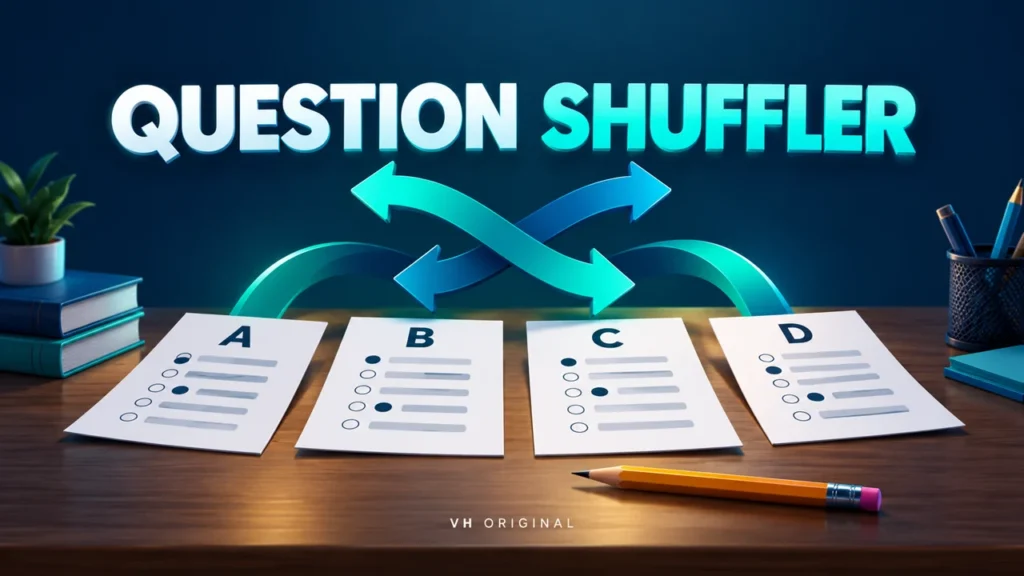
Check the input question bank
Use between one and 100 questions, with two to six distinct, nonblank options per question. Write one correct answer index and check it against the original text. The tool rejects missing questions, duplicate options and answer positions outside the option list. It does not write questions, evaluate factual accuracy or detect multiple correct answers. For classroom use, review language, difficulty, marks and syllabus coverage yourself.
Keep order-dependent options locked
Some options refer to their original positions: “both A and B”, “all of the above”, numbered sequences or diagram labels. Add lockOptions:true to that question to preserve its option order. You can also disable option shuffling for the whole bank. The example includes a locked question. The tool cannot reliably understand every language or position-dependent phrase, so this check belongs to the teacher.
Correct answers follow the shuffle
Every option is shuffled with its original identity. The answer key then records the correct letter in the new order. It also records the original question number for checking. Keep each set with its matching key; a Set A key is not a Set B key. Student HTML and TXT contain questions and options, while teacher files contain the answers. Never share teacher files with students.
Export and print the paper sets
Download student HTML, teacher-key HTML, student TXT, teacher-key TXT or JSON of the generated sets. Open HTML locally and use browser Print → Save as PDF if needed. A4 portrait styling and separate sections are included; inspect page breaks for long questions. TXT is convenient for editing but loses rich page layout. Native PDF generation, images, equations and document upload are outside this version.
Understand randomness and classroom limits
Randomisation uses the browser’s built-in random source and a shuffle algorithm. Small question banks can produce identical sets by chance. Shuffling does not guarantee unique papers or prevent cheating, and it does not balance difficulty into different exams. Keep the original question bank as a separate JSON file. Entries and generated files are not automatically saved when you leave the page.
Advice
Run a short trial first. Compare every generated set with its own key before printing, especially questions with references to option letters.
Frequently asked questions
Can I create four sets?
Yes, choose four for A/B/C/D.
Is answer:0 valid?
No. Answers start at 1, matching the original options.
Can I preserve option order?
Yes. Disable option shuffling or add lockOptions:true to a question.
Are the answer keys in student papers?
No. Teacher keys are separate files; keep them private.