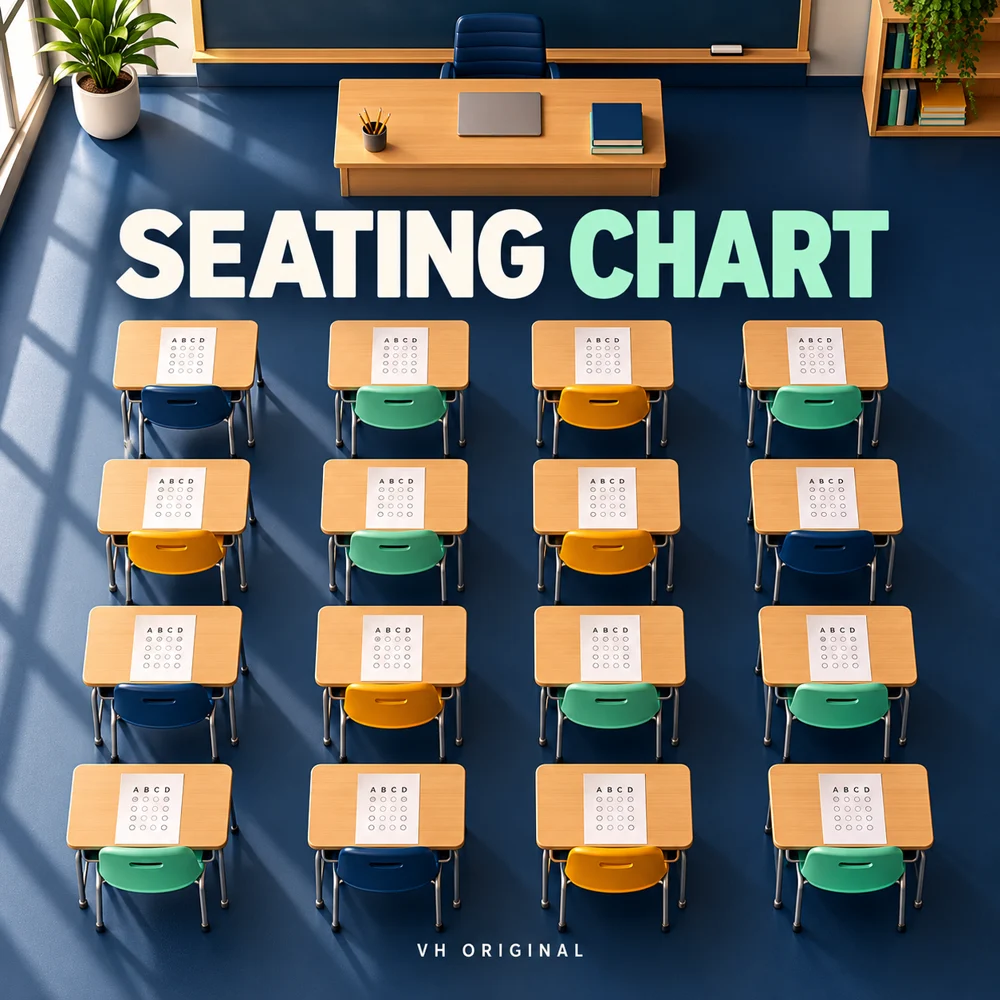
Build a classroom seating chart from a simple roster. Choose rows and columns, reserve unavailable seats, place selected students in the front row and separate named pairs. The tool searches for a chart that follows those rules and gives a clear message if it cannot produce one. Names stay in the browser; no external API processes the roster.
How to randomise classroom seats
Enter one unique student label per line. Names or roll numbers work; use a unique label when two students share a name. Choose one to ten rows and columns. Row 1 is the front nearest the teacher. Add any optional rules and build. The example shows eight fictional labels, a front-row rule, one blocked seat and one separation pair.
Keep enough available seats
The grid can contain up to 100 seats, with a maximum of 100 student labels. Empty seats are allowed. To block a desk, enter its row and column as 3,4 on its own line. Blocked desks are excluded from placement. Duplicate blocked coordinates count once. The tool checks capacity before searching, so a class larger than the unblocked grid produces an error instead of a partial roster.
Assign selected students to the front
Enter front-row labels exactly as they appear in the roster, one per line. These students must occupy unblocked seats in row 1. A front-row rule does not choose an exact column, and students without that rule may also sit in the front. If there are more required front-row students than available front desks, the tool rejects the request. It does not infer anyone’s personal or medical needs.
Separate pairs with an explicit rule
Enter pairs as Alice | Bob, one per line. Both labels must exist in the roster. A pair cannot sit in neighbouring desks that share an edge: left/right or front/back. Diagonal desks remain allowed. Up to 30 pairs are supported. This rule models a rectangular grid; actual desk spacing or an aisle can differ, so review the chart against your real classroom.
When the rules cannot be satisfied
The tool uses a bounded search rather than silently ignoring a rule. If the available layout cannot meet the rules, it produces no chart. A search-limit message means no valid chart was found within the limit; it is not proof that a solution is impossible. Try again, add empty seats or reduce constraints. Random placements with rules are not guaranteed to be a uniform sample of all possible arrangements.
Download, print and review the plan
CSV gives row, column and student/status fields. JSON saves the generated arrangement. Printable HTML shows the grid in A4 landscape; open it locally and use browser Print → Save as PDF if needed. No native PDF is generated directly. Review accessibility, visibility, safety and learning needs before assigning seats. Unsaved entries disappear on reload or closing the page; downloads remain your responsibility.
Advice
Use roll numbers for a printable public chart when appropriate. A random arrangement is only a starting point; the teacher should review practical classroom needs.
Frequently asked questions
Where is the front row?
Row 1 is the front nearest the teacher.
Do separation pairs avoid diagonal seats?
No. They avoid shared-edge neighbours only.
Can I block empty desks?
Yes. Enter row,column for each blocked desk.
Does a search limit prove the rules impossible?
No. It means no valid chart was found within the search limit.