Listen — Full story in just 1 minute
How to Add Your Business Address on Google Maps: Complete Guide (Google Maps Business Listing)
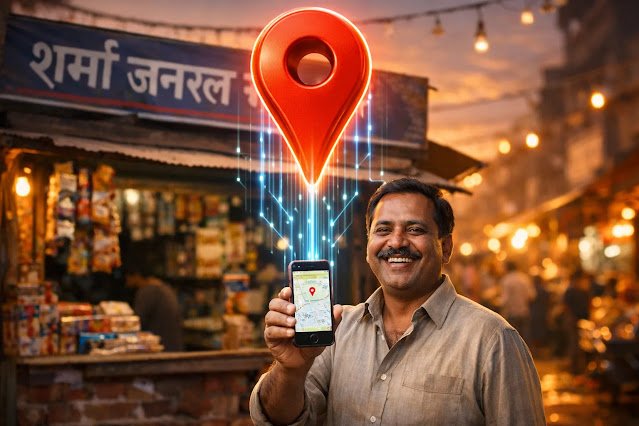
In today’s digital era, where all information is available at your fingertips, if your business is not on Google Maps, consider yourself away from more than half of your potential customers. Whether you run a small kirana store, a restaurant, a salon, or a large wholesale business, being easily searchable online has become an absolute necessity for customers. When a customer searches for “shop near me” or “near me” on their phone, does your business show up? If not, this article is for you.
Adding your business address on Google Maps not only provides easy access for your customers, but it is also a free and powerful marketing tool for your business. The process is not as complicated as it seems. A free tool called Google Business Profile gives you the facility to easily list your shop, opening hours, photos, mobile number, and even your website on Google Maps. Let us understand this entire process in detail and learn how you can give your business a new identity in the digital world.
Why is Google Maps Listing Necessary for Your Business?
In today’s time, listing your business on Google Maps is not just an option, but an essential requirement. There are several important reasons for this:
- Easy Access and Customer Convenience: Customers now prefer navigating directly on their smartphones instead of asking for directions. Your listing takes them straight to you.
- Increased Visibility in Local Searches: When a customer searches for a specific service or product in your city using “near me”, having a Google Maps listing makes your business appear at the top of search results.
- Building Trust and Credibility: A well-managed and verified Google Business Profile builds trust among your customers. It shows that your business is legitimate and trustworthy.
- Free Marketing and Advertising: Google Business Profile is a free tool that allows you to reach millions of people without spending anything. It acts as free online advertising for your business.
- Staying Ahead of Competition: Many of your competitors might already be on Google Maps. If you are not, you are losing customers.
- Customer Reviews and Feedback: Customers can leave reviews on your listing. These reviews help attract new customers and give you an opportunity to understand customer feedback.
- All Business Information in One Place: All essential information such as opening hours, contact numbers, website, photos, and special offers are available in a single location.
What is Google Business Profile (GBP) and How Does It Work?
Google Business Profile (GBP) is a free and powerful tool provided by Google that helps businesses manage their online presence across Google Search and Google Maps. It connects your business with customers, provides them with key information, and helps you build your online reputation.
Here is how it works:
- You enter your business details (such as name, address, phone number, opening hours, category, photos) on GBP.
- Google verifies this information (to ensure that your business is real).
- Once verified, your business starts appearing on Google Search and Maps.
- Customers can search for your business, get directions, call directly, visit your website, and leave reviews.
- You can regularly update your profile, post offers, and reply to customer reviews.
Preparation Before Adding Your Business Address on Google Maps
To successfully list your business on Google Maps, you should keep some information ready in advance. This will make the process smooth and fast:
- Gather Necessary Information:
- Correct Business Name: Ensure this is the official and complete name of your business, exactly as it appears offline.
- Full Address: Precise and detailed address including street number, area, city, state, and pincode.
- Phone Number: An active phone number where customers can contact you.
- Website (If available): If you have a website, keep its URL ready.
- Business Category: Choose the most accurate category for your business (for example, ‘Restaurant’, ‘Grocery Store’, ‘Clothing Store’). You can select one primary and a few additional categories.
- Business Hours: Opening and closing times for your business for every day of the week.
- High-Quality Photos: Good photos of your shop’s exterior (with signage), interior, products, and team. These help attract customers.
- Short Business Description: Briefly describe what your business does and what you offer to customers.
- A Google Account: You must have an active Google Account (Gmail ID). You will manage your Google Business Profile using this account.
How to Add Your Business Address on Google Maps: Step-by-Step Guide
Now that you have collected all the required details, let us learn how to add your business address on Google Maps:
Step 1: Go to Google Business Profile
Type business.google.com in your web browser and press enter. Sign in with your Google account.
Step 2: Search or Add Your Business
You will see an option for ‘Add your business to Google’. You can also search for your business name to ensure it is not already listed.
Step 3: Enter Business Name
Enter the exact name of your business and click ‘Continue’.
Step 4: Choose Business Category
Select the most accurate category for your business. This is very important as it helps customers find you. You can also add more categories later.
Step 5: Do You Want to Add a Physical Location?
If you have a physical shop or office where customers visit you, select ‘Yes’. If you only provide services to customers (like a plumber who visits homes and has no physical store), select ‘No’. In the context of this article, we will select ‘Yes’.
Step 6: Enter Your Address
Enter the complete and accurate address of your business. Make sure you fill in all details (street, city, state, pincode) correctly. Google may also ask you to confirm your address location on the map.
Step 7: Choose Service Area (If Applicable)
If your business provides services to customers beyond your physical location (like home delivery or doorstep services), you can add your service areas. If not, you can skip this step.
Step 8: Add Contact Details
Enter your phone number and website URL (if any). This will help customers contact you directly.
Step 9: Verify Your Business (Verification)
This is the most crucial step. Google will verify your business to confirm that you are the real owner. Verification can be done through several methods, including:
- Mail by Postcard: This is the most common method. Google will send a postcard containing a verification code to your given address. This may take 5-14 days. Once received, enter the code in your GBP profile to complete verification.
- Phone or Email: For certain businesses, Google may offer instant verification via phone call or email.
- Instant Verification: If your business is already verified in Google Search Console, you might get an instant verification option.
Be patient until you receive the verification code. Your listing will not go live without it.
Step 10: Complete Your Profile
Once verified, proceed to complete your profile fully:
- Add your business opening and closing hours.
- Upload high-quality photos (logo, shop exterior and interior views, products).
- Write a detailed description of your business.
- Add the services or products you offer.
How to Optimize Your Google Business Profile?
Simply creating a listing is not enough; optimizing it is equally important so that it reaches more customers:
- Fill Complete Information: Fill out every section of your profile completely. An incomplete profile is less effective.
- Add High-Quality Photos: Upload fresh and attractive photos regularly. This attracts customers.
- Update Posts Regularly: Post updates about offers, events, new products, or services regularly. This keeps your profile active.
- Respond to Customer Reviews: Reply professionally and politely to all reviews, whether positive or negative. It shows customers that you care.
- Keep Business Hours Updated: Don’t forget to update your business hours during festivals or special occasions.
- Add Products/Services: List your products and services in detail on your profile.
- Use Insights: Use the ‘Insights’ section in the Google Business Profile dashboard to see how customers find you and interact with your profile.
Common Problems and Solutions
- Delay in Verification: Postcards can take time to arrive. Be patient. If it has been more than 2 weeks, you can request a new code from the dashboard.
- Incorrect Information: If you entered wrong information, you can edit it anytime by going to your GBP profile.
- Duplicate Listing: If your business was accidentally listed twice, you can report the duplicate listing to Google so they can remove it.
- Managing Reviews: Take negative reviews positively and respond to them. It enhances your credibility.
Vivek Bhai’s Advice
Brother, if your store is not on Google Maps in today’s time, then consider that you don’t even exist. People don’t ask for directions anymore; they take out their phone and search on the map. Whether you have a small kirana store or a big business, this is a free marketing tool—use it! And yes, once you list it, don’t just forget about it. Keep updating it regularly, upload new photos, and make sure to reply to customer reviews—good or bad, respond to both. Doing all this makes Google feel that you are active and it will promote your listing even more. So what are you waiting for? Go right now and bring your business online!
Conclusion
Adding your business address to Google Maps can prove to be a game-changer for your business. It connects you with new customers, increases your online visibility, and keeps your business relevant in the modern digital world. The process is free and can be started in just a few minutes. By following the steps outlined above, you can easily list your business on Google Maps and strengthen your online presence. So, what are you waiting for? List your business on Google Maps today and reach new heights of success!